Jenkins
CI/CD support for Jenkins is currently in beta for select Lacework customers. Contact your Lacework Representative for more information.
Manage Lacework API Credentials with Jenkins
There are a variety of ways to manage credentials in Jenkins. For more information, go to the Jenkins Documentation
Collect LW_API_KEY and LW_API_SECRET
To integrate with Jenkins, you must first collect your LW_API_KEY and LW_API_SECRET. To view this information:
- Log in to the Lacework Console.
- Click Settings > API keys.
- Select or create an API key.
- Click the download icon.
- Open the downloaded .json file to view your API Key and Secret.
Add LW_API_KEY and LW_API_SECRET as Credentials
The following set of instructions add and configure global credentials in your Jenkins environment. Before implementing these credentials, check with your Jenkins admin to ensure this is your organization's method of configuration.
The following instructions are just an example - please follow your organization’s credential management.
You must have Credentials > Create permission in your Jenkins organization. This role is configured by a user with Administer permission.
Create New Credentials
To add new credentials:
- Log in to Jenkins.
- Go to Manage Jenkins.
- Click Manage Credentials
- Click Jenkins under Stores scoped to Jenkins.
- Click Global credentials (unrestricted) under System.
- Click Add credentials. Note: this may appear as add some credentials.
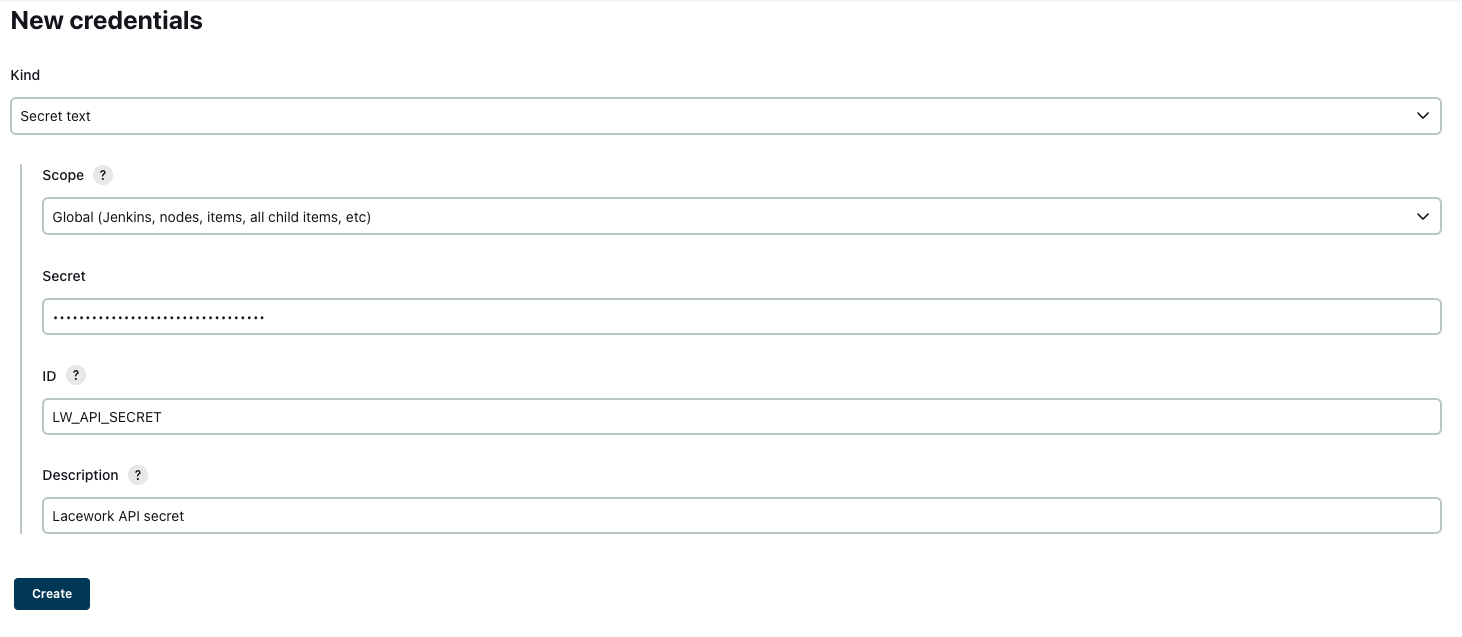
Then, add LW_API_KEY and LW_API_SECRET as “Secret text” credentials. For each credential:
- In the Kind dropdown Secret text.
- In the Scope dropdown, select Global.
- Paste your secret in the Secret field.
- In the ID field, enter
LW_API_KEYorLW_API_SECRET. - Describe the credential.
- Click Create.
Add the Credentials to your Job Configuration
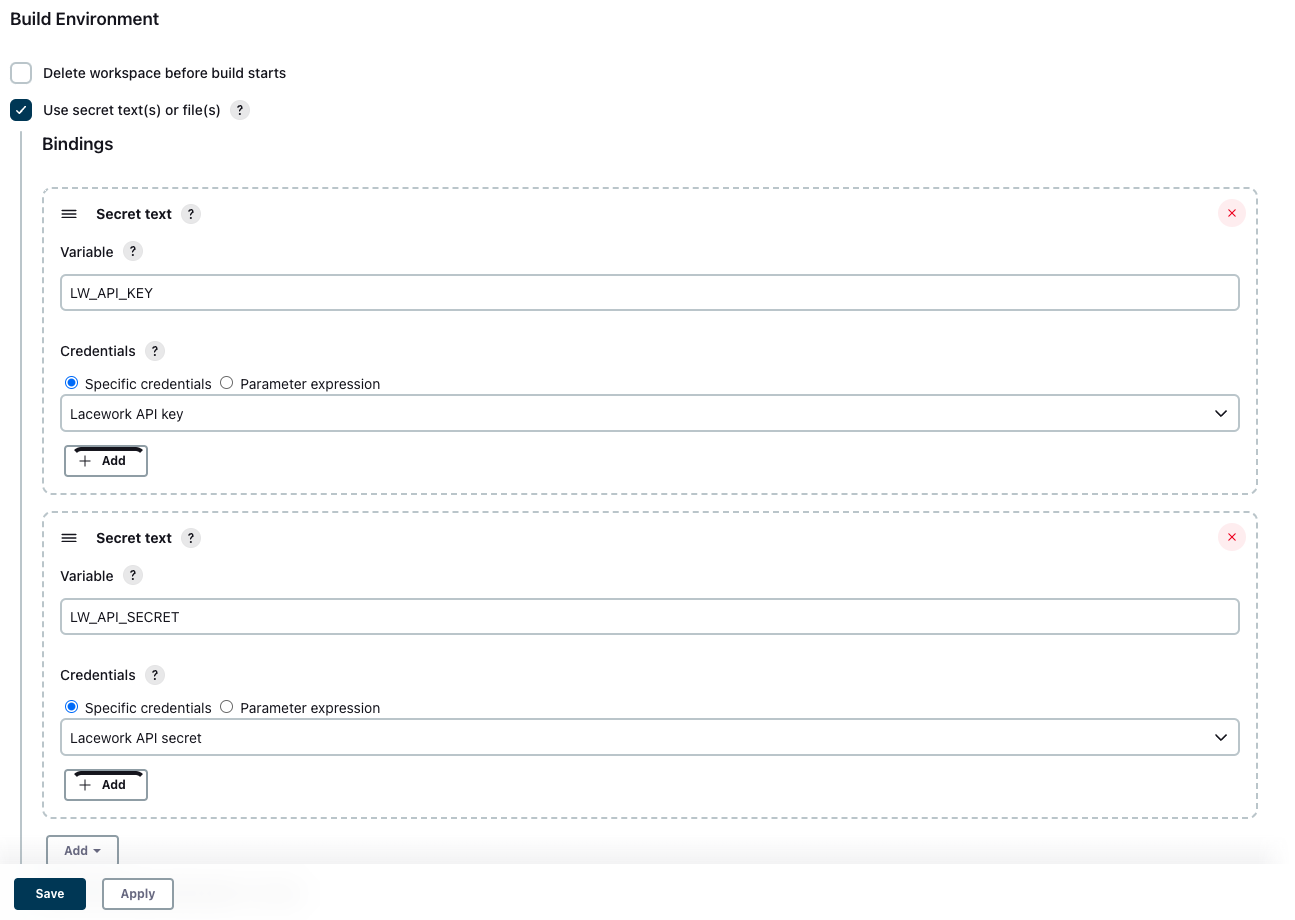
Once you have added LW_API_KEY and LW_API_SECRET as secret text credentials, you must add them to your job configuration:
- Open your Jenkins job configuration.
- Go to the Build environment section.
- Select Use secret text(s) or file(s).
- Under Bindings, click Add.
For each credential,
- In the Variable field, enter the Variable name (for example,
LW_API_KEY). - In the Credentials dropdown, select the credential that corresponds with the named variable.
- Click Save.
Use the lacework/codesec-iac Image for IaC Scanning
Prepare an env.list File
The lacework/codesec-iac image runs in Docker, but it relies on a number of environment variables being passed to it by Jenkins. This can be achieved by creating an env.list file in the workspace with the required variables and then having Docker use that for its environment.
The following script can be used:
#!/bin/bash
## Provide Lacework credentials
echo "LW_ACCOUNT=AcmeCorporation" > env.list
echo "LW_API_KEY=${LW_API_KEY}" >> env.list
echo "LW_API_SECRET=${LW_API_SECRET}" >> env.list
echo "SCAN_COMMAND=tf-scan" >> env.list
echo "WORKSPACE=src" >> env.list
## Provide Jenkins build details
env | grep '^BRANCH_\|^CHANGE_\|^TAG_\|^BUILD_\|^JOB_\|^JENKINS_\|^GIT_' >> env.list
The #!/bin/bash declaration at the top of the script ensures that the commands are interpreted as bash. Don't leave it out!
Invoke Docker
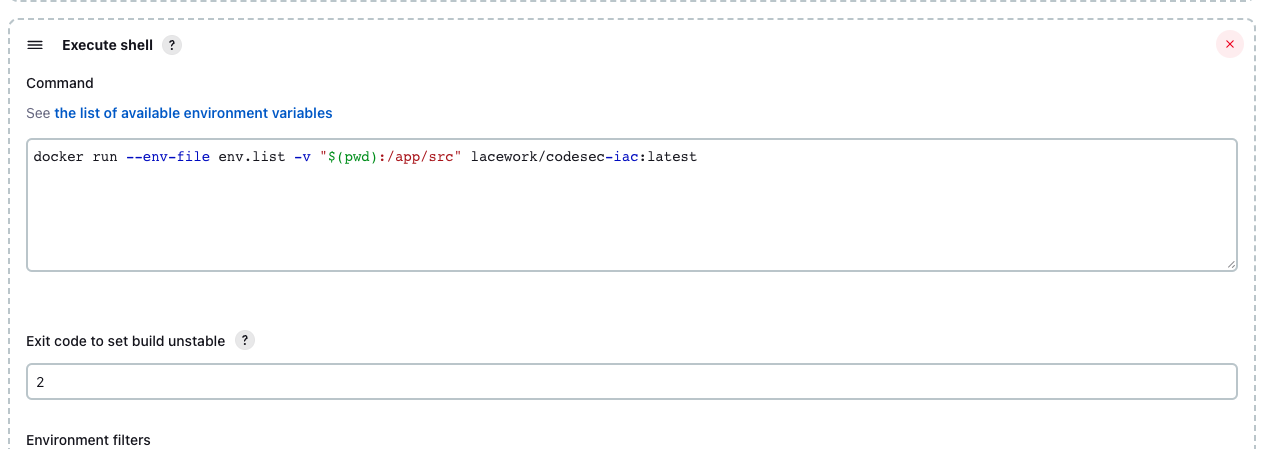
Your can then invoke Docker in your Jenkins job with usage such as:
docker run --env-file env.list -v "$(pwd):/app/src" lacework/codesec-iac:latest
Define an Unstable Result
To have your job reach an “unstable” result, you can add an entry for EXIT_FLAG that defines your threshold for IaC violations in the env.list file.
For example, to make a count of 2 violations of at least High severity be flagged as a problem, set the variable as:
echo "EXIT_FLAG=High=2" >> env.list
Then in your job configuration, define an exit code of 2 to indicate instability.
Available Commands
For available commands, refer to CI/CD Usage.