Amazon GuardDuty
The Amazon GuardDuty integration is currently in preview.
Overview
Findings from Amazon's native threat detection service, GuardDuty, expand Lacework's detection capabilities. Lacework collects GuardDuty findings through AWS Security Hub, correlates the entities in its graph-based known and unknown threat detection system, and displays relevant GuardDuty findings as Supporting Facts in Lacework Composite Alerts. This integration automates the evidence-gathering phase of incident investigations, providing security analysts with high-efficacy, low-volume alerts.
Prerequisites
- Enable Amazon GuardDuty - Follow the AWS documentation to enable Amazon GuardDuty in your AWS account.
- Enable AWS Security Hub - Follow the AWS documentation to enable AWS Security Hub in your AWS account.
- A Lacework Cloud Security Platform SaaS account.
When Amazon GuardDuty and AWS Security Hub are enabled, GuardDuty automatically sends findings to AWS Security Hub.
Amazon GuardDuty Integration Architecture
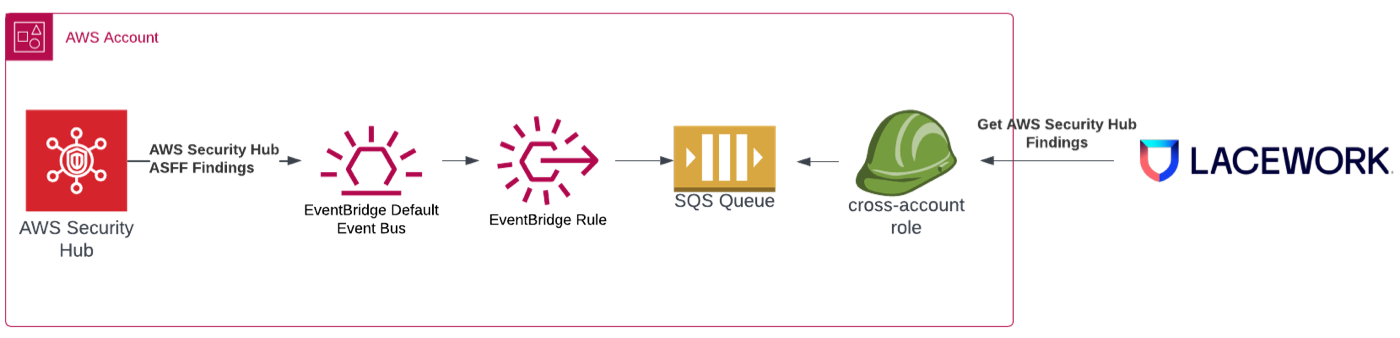
CloudFormation is used to deploy the Lacework Amazon GuardDuty integration. The CloudFormation template creates the following resources:
- An EventBridge rule that forwards GuardDuty findings to an SQS queue.
- An SQS queue that receives the GuardDuty findings.
- A cross-account IAM role that allows Lacework to access the SQS queue in order to receive the GuardDuty findings.
Configure the Amazon GuardDuty Integration
Navigate to CloudFormation
Follow these steps to integrate using CloudFormation:
- Log in to the Lacework Console.
- Go to Settings > Integrations > Cloud accounts.
- Click + Add New.
- Click Amazon Web Services and select CloudFormation.
- Click Next.
- Select AWS Security Hub for the integration type.
- Choose an integration method:
- Option A: Run CloudFormation template - This option requires fewer steps and less user interaction. For this option, disable your browser pop-up blocker.
- Option B: Download CloudFormation template - This option requires more user interaction, but may be useful if you have multiple accounts with distributed ownership.
Option A: Run CloudFormation Template
- Click Run CloudFormation template.
You are redirected to the AWS Create stack > Select Template page. The Lacework script populates the Specify an Amazon S3 template URL for you. - Review the page and click Next.
Option B: Download CloudFormation Template
- Click Download CloudFormation Template.
- Log in to your AWS account.
- Select the CloudFormation service and click Create New Stack. The Create stack > Select Template page displays.
- Upload the Lacework template and click Next.
For more information on selecting a stack template, refer to AWS documentation.
CloudFormation Stack Details
On the Create Stack - Specify Details page:
- Create a Stack name [for example, Lacework-Amazon-GuardDuty] or use the default.
- Resource name prefix is populated with the account name of the first account configured to use Lacework. When adding accounts, you can keep this prefix or enter a different prefix to ensure account uniqueness. If you chose to upload the template during initial installation, Resource name prefix is empty. Enter a prefix such as an account name.
- ExternalID is populated by Lacework. It is not editable if you used the Run CloudFormation Template option in the Lacework Console.
- Click Next.
CloudFormation Stack Options
No changes are required on the Create stack - Options page. Click Next.
CloudFormation Stack Review
On the Create stack - Review page, complete the following steps:
- Check I acknowledge that AWS CloudFormation might create IAM resources with custom names.
- Click Create stack.
CloudFormation Stack Progress
After clicking Create, you are redirected back to the CloudFormation page.
If you do not see your new stack in the table, refresh the page. Select your stack to see the event log as it is being created. When the stack is CREATE-COMPLETE, the Amazon GuardDuty integration is complete.
Permissions
The following IAM permissions are required to allow Lacework to receive GuardDuty findings. These are provisioned as part of the CloudFormation deployment.
Cross-Account IAM Role
  LaceworkSecHubCrossAccountAccessRole:
    Type: AWS::IAM::Role
    Properties:
      RoleName: !Sub "${ResourceNamePrefix}-Lacework-Sec-Hub-Role"
      AssumeRolePolicyDocument:
        Version: "2012-10-17"
        Statement:
          - Effect: Allow
            Action:
              - sts:AssumeRole
            Principal:
               AWS: !Join
                  - ''
                  - - 'arn:aws:iam::'
                    - !Ref LaceworkAWSAccountId
                    - ':root'
            Condition:
              StringEquals:
                sts:ExternalId:
                  !Ref ExternalID
      Path: "/"
      Policies:
        - PolicyName: LaceworkSecHubCrossAccountAccessRolePolicy
          PolicyDocument:
            Version: "2012-10-17"
            Statement:
              - Effect: Allow
                Action:
                  - sqs:ListQueues
                  - sqs:GetQueueAttributes
                  - sqs:GetQueueUrl
                  - sqs:DeleteMessage
                  - sqs:ReceiveMessage
                Resource:
                  - !GetAtt LaceworkSecHubQueue.Arn
FAQs
How do I know if the integration is working?
After configuring the Security Hub integration, the status in Lacework will show Pending until a new event is generated by Security Hub and delivered to Lacework. The status will then show Success. If there is an issue, you will see an error message.
Where can I see the GuardDuty findings in Lacework?
GuardDuty findings are only displayed when they correlate with a Lacework Composite Alert.
For AWS Control Tower customers, Lacework is an AWS Built-in partner and provides a bundled solution with AWS Control Tower, Amazon GuardDuty, and AWS Security Hub. This solution is intended for AWS Control Tower customers that require a seamless and comprehensive security solution for all accounts in their AWS organization. For more information, see the Lacework AWS Built-in Package.