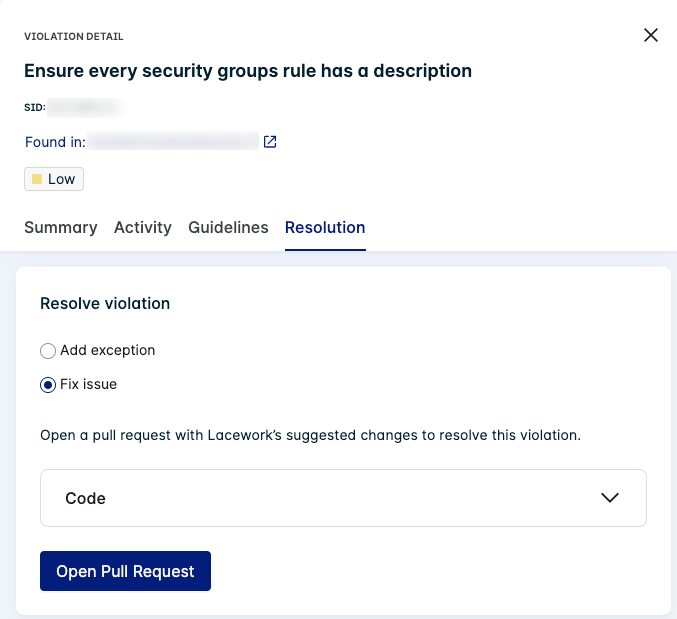
Violations
To view code security violations that were found in your organization's most recent assessment, log in to the Lacework Console and select Code Security > IaC in the main sidebar menu and click the Violations tab.
The Violations page details the violations found in your selected organization's most recent assessment. The dropdown in the upper right-hand corner of the page displays the organization that is currently selected. To change the organization, use the dropdown to select a different organization. Click Refresh Orgs to be directed to the code repository integration wizard. Go to Integrate Repositories for more information.
Enter a keyword into the Contains search to filter the violations.
Click Add integration to set up a new integration.

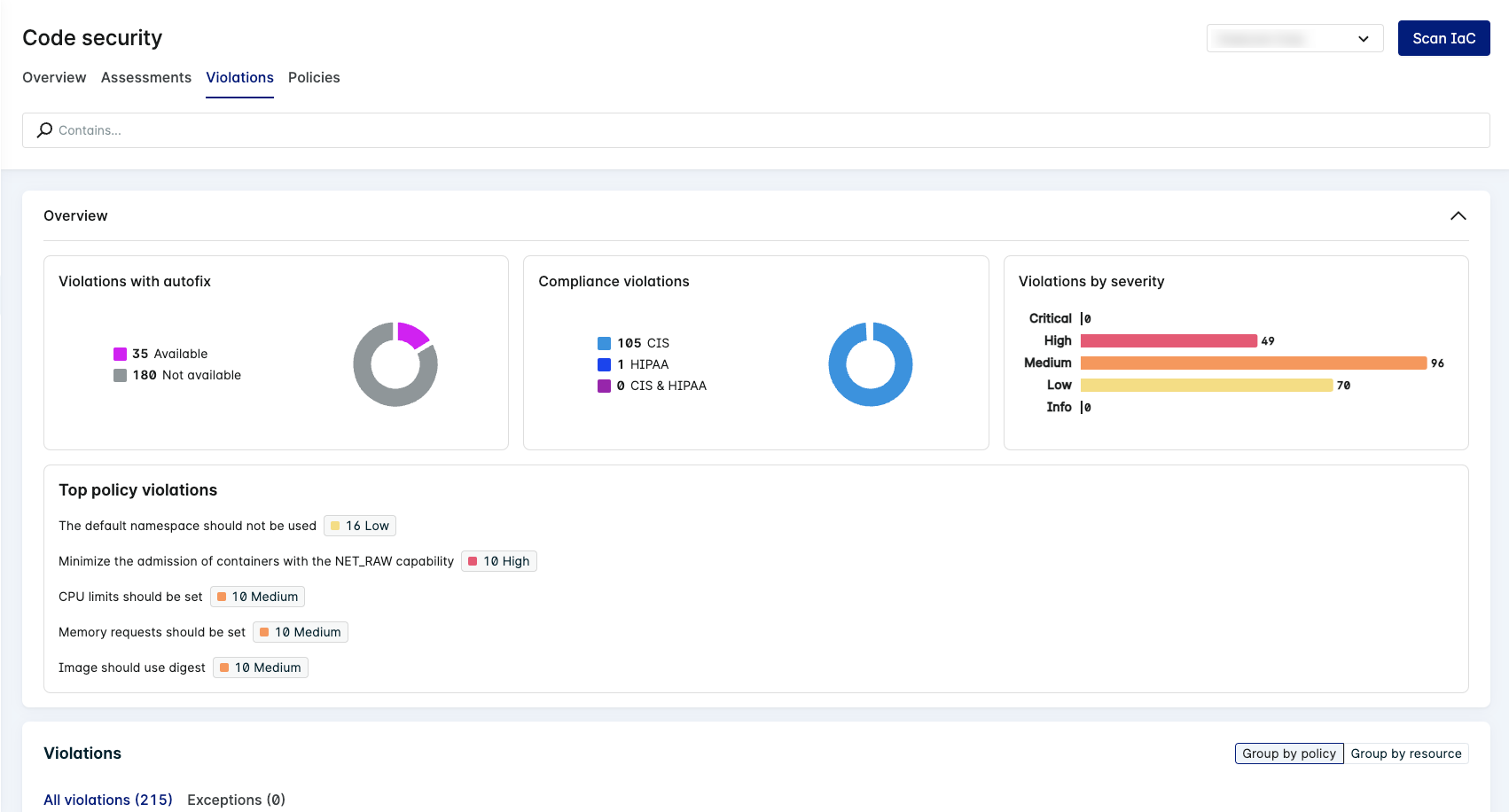
Overview
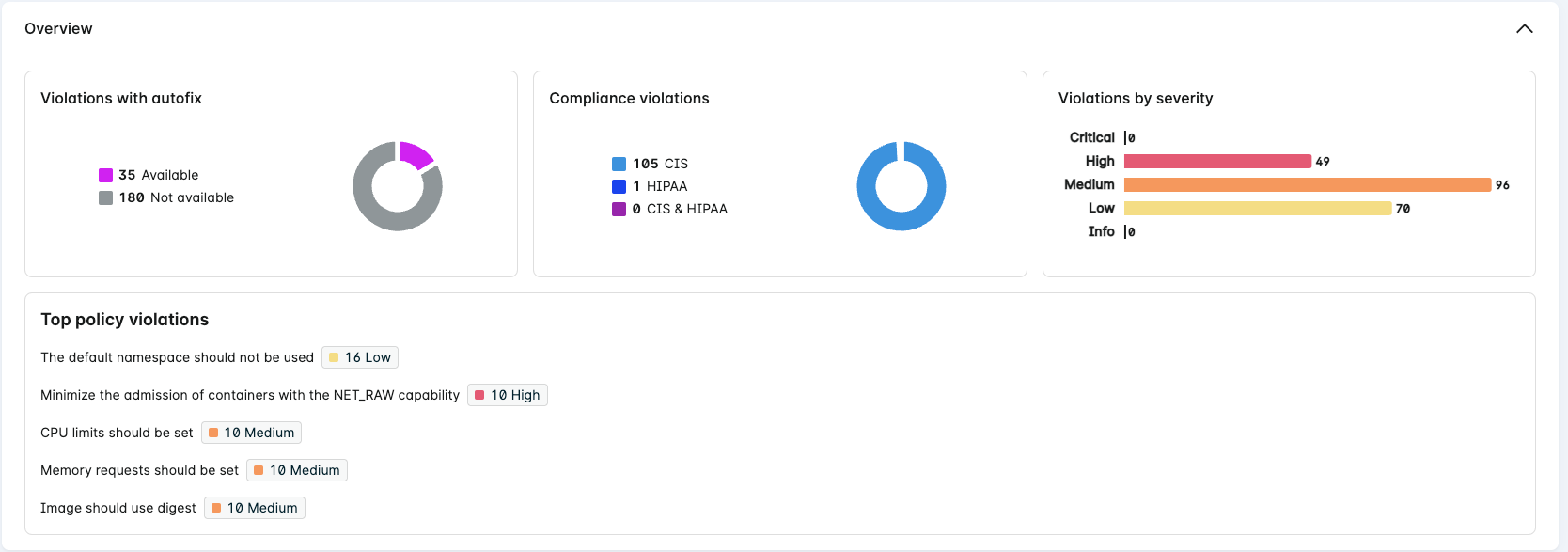
The overview section of the Violations page displays visual representations of the violations found in your organization's most recent assessment. The graphs display important breakdowns such as how many of the violations have autofix availability and the severity of them. For violations of compliance measures, such as CIS, the Compliance violations chart breaks down the number of violations found for each measure.
The overview also lists your top five policy violations and names the violation, shows the number of violations found, and the severity of the specified violation.
Violations
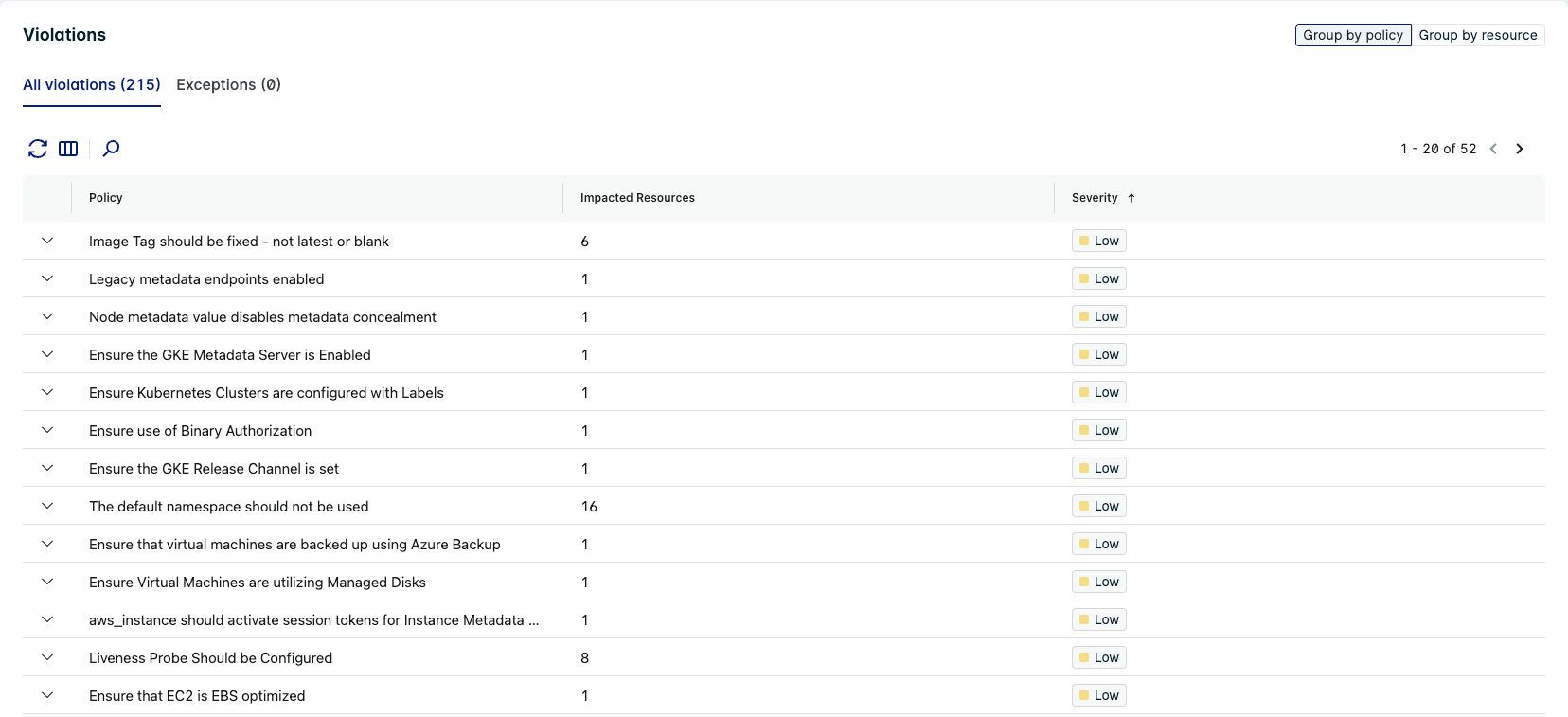
Following the violations overview is a list of the violations that the most recent assessment found. By default, the violations are grouped by policy. Click Group by resource to group the violations by resource, for example, violations on ECS clusters.
The violations table can be refreshed or searched, and you can also hide/display columns with the select columns icon.
All violations
Group by Policy (default)
For each violation, the Console displays the policy name, the number of impacted resources, and the violation severity. Click a policy to view the specific resources the violation was found in, the location of the violation, and if a fix is available. If a fix is available, click Resolve to view additional resolution information.
In the expanded policy row, click a resource row to open the Violation Detail Drawer.
Group by Resource
If you have grouped your violations by resource, the list of violations includes the resource name and the number of impacted policies. Click a resource row to view the impacted policies, their location, severity, and if a fix is available.
In the expanded resource row, click a policy row to open the Violation Detail Drawer.
Exceptions
The exceptions tab lists all of your violation exceptions grouped by policy or resource. To add, edit, or remove a policy violation exception, go to the Resolution tab of the Violation Detail Drawer.
Group by Policy (default)
For each active exception to policy violations, the Exceptions tab lists the policy summary, the number of impacted resources and the policy's severity. To view the impacted resources, expand the policy row. For each resource, click the link in the Found in column to open the resource in another tab. If a fix is available, click Resolve to view additional resolution information.
In the expanded policy row, click a resource row to open the Violation Detail Drawer.
Group by Resource
Click Group by resource to display your violation exceptions by resource. The list of violations includes the resource name and the number of impacted policies. Click a resource row to view the impacted policies, their location, severity, and if a fix is available. If a fix is available, click Resolve to view additional resolution information.
In the expanded resource row, click a policy row to open the Violation Detail Drawer.
Violation Detail Drawer
The Violation Detail Drawer includes additional information about the violation found in your organization. The Summary (default) tab describes the violation, the Activity tab details user activity for a violation, the Guidelines tab provides additional information and context for the violation, and the Resolution tab allows you to add an exception and, when possible, create a pull request with a suggested code fix.
Summary
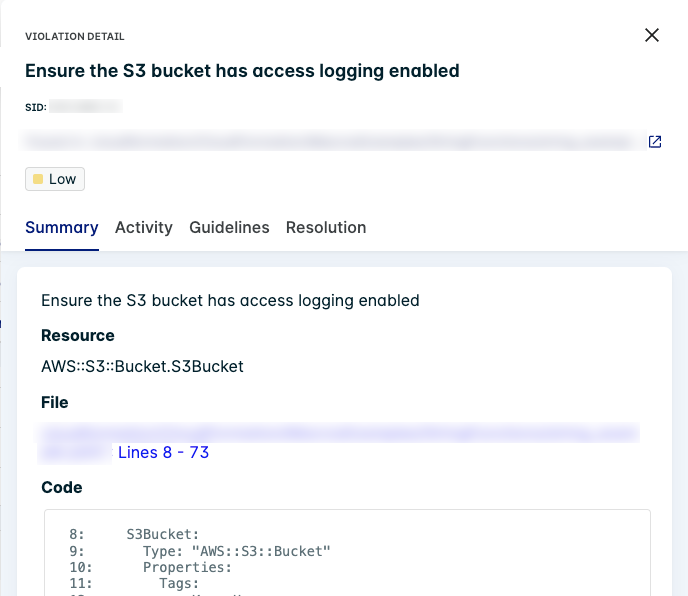
The Summary tab in the violation details drawer provides a quick description of the violation and where it was found in your code. The violation summary directs you to the resource and file where the violation is located and includes a snippet of your code.
Activity
To view activity for a specific violation, such as when an exception was added or removed, click the Activity tab in the Violation Details Drawer.
Guidelines
The Guidelines tab includes an in-depth description of the policy as well as a rationale for why it is important. The remediation guidelines provide instructions on how you may resolve a violation for a specific policy.
Some policy violations may have additional guidelines such as impact, references, notes, and instructions to audit a specific element of the policy such as nodes. You may also find information about compliance measures such as CIS and HIPAA that relate to the specific policy.
Resolution
In the violations table, click Resolve to go to the Resolution tab of the Violations Detail Drawer. For any given policy violation, you can add an exception to the violation within the repository. If the fix available column displays Yes, click Resolve to view Lacework's suggested fix for the violation.

Add Exception
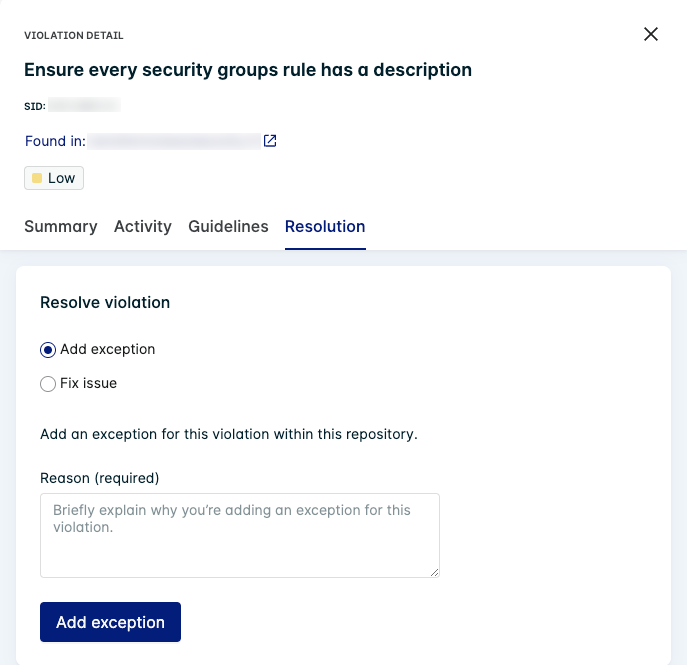
In the Resolution tab of the Violations detail drawer, select Add exception to add an exception to the violation to prevent Lacework from alerting on this violation for the selected repository. You must provide a reason for creating an exception. Then click Add exception to save the exception.
Fix Issue
This option is only visible for violations with a fix available.
If Lacework has a suggested fix for the violation, you can click Fix issue in the Resolution tab to allow Lacework to create a Pull Request with the fix. To view the proposed changes,