Workload Visibility and Security
Provides workload level data collection visibility, enabling the resultant Lacework Feature(s):
| Use Cases | Lacework Feature(s) | Data Source |
|---|---|---|
| User and Entity Behavior Analytics (UEBA) | Workload Anomaly Detection Process Dashboard and Polygraph Network Dashboard and Polygraph Filesystem Dashboard and Polygraph | Linux Agent Windows Agent Kubernetes Agent |
| Vulnerability Management | Vulnerability Management Dashboard (including Active Vulnerability Detection) | Linux Agent Kubernetes Agent Kubernetes Admission Contoller |
| Kubernetes Posture Management (KSPM) | Kubernetes Compliance Dashboard and Reports | EKS Compliance |
Below we'll review the requirements for deploying the Lacework agent to these various systems.
- Linux
- Windows
- Kubernetes
- EKS Compliance
| Use Cases | Lacework Feature(s) | Data Source |
|---|---|---|
| User and Entity Behavior Analytics (UEBA) | Workload Anomaly Detection Process Dashboard and Polygraph Network Dashboard and Polygraph Filesystem Dashboard and Polygraph | Linux Agent |
| Vulnerability Management | Vulnerability Management Dashboard (including Active Vulnerability Detection) | Linux Agent |
- Prerequisites
Agent Supported Linux Operating Systems 📎
To analyze application, host, and user behavior, Lacework uses a lightweight agent, which securely forwards collected metadata to the Lacework cloud for analysis. The agent requires minimal system resources and runs on most 64-bit Linux distributions such as the following:
x86 Architecture
| Operating System | Versions |
|---|---|
| AlmaLinux | 8.7, 9.1 Note: Package vulnerability scanning is not supported on AlmaLinux OS. |
| Alpine Linux (General beta support) | 3.10, 3.11, 3.12, 3.13, 3.14, 3.15, 3.16.2 |
| Amazon Linux | 2, 2022, 2023 |
| Amazon Linux AMI | 2016.03, 2016.09, 2017.03, 2017.09, 2018.03 |
| CBL-Mariner | 2.0 |
| CentOS | 6.x, 7.x, 8.x, 9.x |
| Container-Optimized OS from Google | 81, 85, 89, 90, 93, 97, 101 Note: Package vulnerability scanning is not supported on Container-Optimized OS. |
| Debian | 9, 10, 11, 12 |
| Fedora | 30, 31, 32, 33, 34, 35 |
| Flatcar | 2605.x (amd64 only) |
| Kali GNU/Linux Rolling | Rolling distribution (up to Kali 2022.3) |
| Oracle Linux | 8.3, 8.4, 8.5 |
| Red Hat Enterprise Linux | 7.9, 8.0, 8.1.0, 8.2, 8.3, 8.4, 8.5, 8.6, 8.7, 8.8, 9 |
| Red Hat OpenShift | 4.9 |
| Red Hat OpenShift Service on AWS | 4.9, 4.10, 4.11, 4.12 |
| Rocky Linux | 8.4, 8.5, 8.6, 8.7, 9.0, 9.1 |
| SUSE | 11.4.20, 12 SP1, 12 SP5, 15, 15 SP1, 15 SP2, 15 SP3, 15 SP4 |
| Ubuntu | 14.04, 16.04, 16.10, 17.04, 17.10, 18.04, 18.10, 19.04, 19.10, 20.04, 21.04, 21.10, 22.04 LTS (Jammy Jellyfish), 22.1, 23 |
When configured to run as a container, the agent runs as a privileged Docker container.
ARM64 Architecture
Lacework supports the following ARM-based operating systems, including AWS Graviton and Graviton2 ARM-based instances.
| Operating System | Versions |
|---|---|
| AlmaLinux | 8.7, 9.1 Note: Package vulnerability scanning is not supported on AlmaLinux OS. |
| Amazon Linux | 2, 2022, 2023 |
| CBL-Mariner | 2.0 |
| CentOS | 6.10, 8.2, 9 |
| Debian | 9, 10, 11, 12 |
| Fedora | 30, 31, 32, 33, 34, 35 |
| Red Hat Enterprise Linux | 7.9, 8.0, 8.1, 8.2, 8.3, 8.4, 8.5, 8.6, 8.7, 8.8, 9 |
| Red Hat OpenShift | 4.9 |
| Red Hat OpenShift Service on AWS | 4.9, 4.10, 4.11, 4.12 |
| Rocky Linux | 8.4, 8.5, 8.6, 8.7, 9.0, 9.1 |
| SUSE | 12 SP5, 15 SP2, 15 SP3, 15 SP4 |
| Ubuntu | 16.04, 17.04, 18.04, 19.04, 20.04, 21.04, 21.10, 22.04 LTS (Jammy Jellyfish), 22.1, 23 |
Container Runtime
| Container Runtime | Min. Agent Version |
|---|---|
| Dockerd | All |
| Containerd | > Agent v3.8.2 |
| CRI-O | > Agent v5.0 |
Agent Network Requirements 📎
Connectivity
You must allowlist the following URLs to enable the agent to communicate with the Lacework platform:
- packages.lacework.net (for installing the agent)
- updates.lacework.net : TCP/443 (for upgrading the agent)
- api.lacework.net : TCP/443 (for US accounts)
- aprodus2.agent.lacework.net : TCP/443 (for US accounts)
- api.fra.lacework.net : TCP/443 (for EMEA accounts)
- auprodn1.agent.lacework.net : TCP/443 (for ANZ accounts)
- *.amazonaws.com (for retrieving metadata tags from AWS resources)
- https://compute.googleapis.com (for retrieving metadata labels from GCP resources)
- agentcheck.lacework.net
- agentcheck.lacework.dev
- agent.certprobe.lacework.net
Agents connect to agentcheck.lacework.net, agentcheck.lacework.dev, and agent.certprobe.lacework.net to enable Lacework to monitor agent connectivity with the Lacework platform. Lacework will notify you if an agent has connectivity issues.
If URLs cannot be used for rule writing:
api.lacework.netresolves to the following rotating IPs:34.209.102.252
34.212.241.15
34.212.79.17
35.164.176.181
44.225.189.230
44.230.246.102
52.35.54.98
52.43.136.187
54.185.31.7
162.159.137.89
162.159.138.89
168.100.6.0/23aprodus2.agent.lacework.netresolves to the following rotating IPs:162.159.137.89
162.159.138.89
168.100.6.0/23api.fra.lacework.netresolves to the following rotating IPs:162.159.134.54
162.159.135.54
162.159.137.89
162.159.138.89
168.100.6.0/23and
auprodn1.agent.lacework.netresolves to the following IP:162.159.137.89
162.159.138.89
168.100.6.0/23
If required, the agent can be configured to use a network proxy by adding proxy information to the config.json agent configuration file or by creating an https_proxy environment variable.
Proxies
Add Proxy Information to the Lacework Agent Configuration
To include proxy information, edit the proxyurl key in the config.json file:
{
  "proxyurl": "http://Your_Proxy_Server:Your_Port"
}
Or if your proxy requires a password:
{
  "proxyurl": "http://username:password@Your_Proxy_Server:Your_Port"
}
Add Proxy Information for Kubernetes
To include proxy information in a Kubernetes ConfigMap, you can use the same definition of a proxy as above, as illustrated in this sample lacework-cfg-k8s.yaml:
apiVersion: v1
kind: ConfigMap
metadata:
  name: lacework-config
data:
  config.json: |
    {"tokens":{"AccessToken":"${LaceworkAccessToken}"}, "proxyurl":"http://Your_Proxy_Server:Your_Port"}
Add an https_proxy Environment Variable
From the shell on the host where the agent resides, use the following command to add your proxy URL:
export https_proxy="http:Your_Proxy_Server:Your_Port"
Or if your proxy requires a password:
export https_proxy="http://username:password@Your_Proxy_Server:Your_Port"
Add a Certificate
This section describes the certificates required for the Lacework clouds. If a certificate is not present in the trust store, the agent will not be able to communicate with the Lacework platform. Most current operating systems include the required certificate by default. In certain older operating systems, you might need to add it explicitly.
Certificate for the US Cloud
The api.lacework.net US cloud supports the following Google Trust Services (GTS) Root R1 and GoDaddy certificates.
Google Trust Services (GTS) Root R1 Certificate
The GTS Root R1 certificate is as follows:
-----BEGIN CERTIFICATE-----
MIIFVzCCAz+gAwIBAgINAgPlk28xsBNJiGuiFzANBgkqhkiG9w0BAQwFADBHMQsw
CQYDVQQGEwJVUzEiMCAGA1UEChMZR29vZ2xlIFRydXN0IFNlcnZpY2VzIExMQzEU
MBIGA1UEAxMLR1RTIFJvb3QgUjEwHhcNMTYwNjIyMDAwMDAwWhcNMzYwNjIyMDAw
MDAwWjBHMQswCQYDVQQGEwJVUzEiMCAGA1UEChMZR29vZ2xlIFRydXN0IFNlcnZp
Y2VzIExMQzEUMBIGA1UEAxMLR1RTIFJvb3QgUjEwggIiMA0GCSqGSIb3DQEBAQUA
A4ICDwAwggIKAoICAQC2EQKLHuOhd5s73L+UPreVp0A8of2C+X0yBoJx9vaMf/vo
27xqLpeXo4xL+Sv2sfnOhB2x+cWX3u+58qPpvBKJXqeqUqv4IyfLpLGcY9vXmX7w
Cl7raKb0xlpHDU0QM+NOsROjyBhsS+z8CZDfnWQpJSMHobTSPS5g4M/SCYe7zUjw
TcLCeoiKu7rPWRnWr4+wB7CeMfGCwcDfLqZtbBkOtdh+JhpFAz2weaSUKK0Pfybl
qAj+lug8aJRT7oM6iCsVlgmy4HqMLnXWnOunVmSPlk9orj2XwoSPwLxAwAtcvfaH
szVsrBhQf4TgTM2S0yDpM7xSma8ytSmzJSq0SPly4cpk9+aCEI3oncKKiPo4Zor8
Y/kB+Xj9e1x3+naH+uzfsQ55lVe0vSbv1gHR6xYKu44LtcXFilWr06zqkUspzBmk
MiVOKvFlRNACzqrOSbTqn3yDsEB750Orp2yjj32JgfpMpf/VjsPOS+C12LOORc92
wO1AK/1TD7Cn1TsNsYqiA94xrcx36m97PtbfkSIS5r762DL8EGMUUXLeXdYWk70p
aDPvOmbsB4om3xPXV2V4J95eSRQAogB/mqghtqmxlbCluQ0WEdrHbEg8QOB+DVrN
VjzRlwW5y0vtOUucxD/SVRNuJLDWcfr0wbrM7Rv1/oFB2ACYPTrIrnqYNxgFlQID
AQABo0IwQDAOBgNVHQ8BAf8EBAMCAYYwDwYDVR0TAQH/BAUwAwEB/zAdBgNVHQ4E
FgQU5K8rJnEaK0gnhS9SZizv8IkTcT4wDQYJKoZIhvcNAQEMBQADggIBAJ+qQibb
C5u+/x6Wki4+omVKapi6Ist9wTrYggoGxval3sBOh2Z5ofmmWJyq+bXmYOfg6LEe
QkEzCzc9zolwFcq1JKjPa7XSQCGYzyI0zzvFIoTgxQ6KfF2I5DUkzps+GlQebtuy
h6f88/qBVRRiClmpIgUxPoLW7ttXNLwzldMXG+gnoot7TiYaelpkttGsN/H9oPM4
7HLwEXWdyzRSjeZ2axfG34arJ45JK3VmgRAhpuo+9K4l/3wV3s6MJT/KYnAK9y8J
ZgfIPxz88NtFMN9iiMG1D53Dn0reWVlHxYciNuaCp+0KueIHoI17eko8cdLiA6Ef
MgfdG+RCzgwARWGAtQsgWSl4vflVy2PFPEz0tv/bal8xa5meLMFrUKTX5hgUvYU/
Z6tGn6D/Qqc6f1zLXbBwHSs09dR2CQzreExZBfMzQsNhFRAbd03OIozUhfJFfbdT
6u9AWpQKXCBfTkBdYiJ23//OYb2MI3jSNwLgjt7RETeJ9r/tSQdirpLsQBqvFAnZ
0E6yove+7u7Y/9waLd64NnHi/Hm3lCXRSHNboTXns5lndcEZOitHTtNCjv0xyBZm
2tIMPNuzjsmhDYAPexZ3FL//2wmUspO8IFgV6dtxQ/PeEMMA3KgqlbbC1j+Qa3bb
bP6MvPJwNQzcmRk13NfIRmPVNnGuV/u3gm3c
-----END CERTIFICATE-----
GoDaddy Certificate
The GoDaddy certificate is as follows:
-----BEGIN CERTIFICATE-----
MIIEfTCCA2WgAwIBAgIDG+cVMA0GCSqGSIb3DQEBCwUAMGMxCzAJBgNVBAYTAlVT
MSEwHwYDVQQKExhUaGUgR28gRGFkZHkgR3JvdXAsIEluYy4xMTAvBgNVBAsTKEdv
IERhZGR5IENsYXNzIDIgQ2VydGlmaWNhdGlvbiBBdXRob3JpdHkwHhcNMTQwMTAx
MDcwMDAwWhcNMzEwNTMwMDcwMDAwWjCBgzELMAkGA1UEBhMCVVMxEDAOBgNVBAgT
B0FyaXpvbmExEzARBgNVBAcTClNjb3R0c2RhbGUxGjAYBgNVBAoTEUdvRGFkZHku
Y29tLCBJbmMuMTEwLwYDVQQDEyhHbyBEYWRkeSBSb290IENlcnRpZmljYXRlIEF1
dGhvcml0eSAtIEcyMIIBIjANBgkqhkiG9w0BAQEFAAOCAQ8AMIIBCgKCAQEAv3Fi
CPH6WTT3G8kYo/eASVjpIoMTpsUgQwE7hPHmhUmfJ+r2hBtOoLTbcJjHMgGxBT4H
Tu70+k8vWTAi56sZVmvigAf88xZ1gDlRe+X5NbZ0TqmNghPktj+pA4P6or6KFWp/
3gvDthkUBcrqw6gElDtGfDIN8wBmIsiNaW02jBEYt9OyHGC0OPoCjM7T3UYH3go+
6118yHz7sCtTpJJiaVElBWEaRIGMLKlDliPfrDqBmg4pxRyp6V0etp6eMAo5zvGI
gPtLXcwy7IViQyU0AlYnAZG0O3AqP26x6JyIAX2f1PnbU21gnb8s51iruF9G/M7E
GwM8CetJMVxpRrPgRwIDAQABo4IBFzCCARMwDwYDVR0TAQH/BAUwAwEB/zAOBgNV
HQ8BAf8EBAMCAQYwHQYDVR0OBBYEFDqahQcQZyi27/a9BUFuIMGU2g/eMB8GA1Ud
IwQYMBaAFNLEsNKR1EwRcbNhyz2h/t2oatTjMDQGCCsGAQUFBwEBBCgwJjAkBggr
BgEFBQcwAYYYaHR0cDovL29jc3AuZ29kYWRkeS5jb20vMDIGA1UdHwQrMCkwJ6Al
oCOGIWh0dHA6Ly9jcmwuZ29kYWRkeS5jb20vZ2Ryb290LmNybDBGBgNVHSAEPzA9
MDsGBFUdIAAwMzAxBggrBgEFBQcCARYlaHR0cHM6Ly9jZXJ0cy5nb2RhZGR5LmNv
bS9yZXBvc2l0b3J5LzANBgkqhkiG9w0BAQsFAAOCAQEAWQtTvZKGEacke+1bMc8d
H2xwxbhuvk679r6XUOEwf7ooXGKUwuN+M/f7QnaF25UcjCJYdQkMiGVnOQoWCcWg
OJekxSOTP7QYpgEGRJHjp2kntFolfzq3Ms3dhP8qOCkzpN1nsoX+oYggHFCJyNwq
9kIDN0zmiN/VryTyscPfzLXs4Jlet0lUIDyUGAzHHFIYSaRt4bNYC8nY7NmuHDKO
KHAN4v6mF56ED71XcLNa6R+ghlO773z/aQvgSMO3kwvIClTErF0UZzdsyqUvMQg3
qm5vjLyb4lddJIGvl5echK1srDdMZvNhkREg5L4wn3qkKQmw4TRfZHcYQFHfjDCm
rw==
-----END CERTIFICATE-----
Certificate for the APRODUS2, ANZ, and EU Cloud
For the APRODUS2, ANZ, and EU cloud, Lacework supports the following Google Trust Services (GTS) Root R1 and Digicert Baltimore CyberTrust Root certificates.
Google Trust Services (GTS) Root R1 Certificate
The GTS Root R1 certificate is as follows:
-----BEGIN CERTIFICATE-----
MIIFVzCCAz+gAwIBAgINAgPlk28xsBNJiGuiFzANBgkqhkiG9w0BAQwFADBHMQsw
CQYDVQQGEwJVUzEiMCAGA1UEChMZR29vZ2xlIFRydXN0IFNlcnZpY2VzIExMQzEU
MBIGA1UEAxMLR1RTIFJvb3QgUjEwHhcNMTYwNjIyMDAwMDAwWhcNMzYwNjIyMDAw
MDAwWjBHMQswCQYDVQQGEwJVUzEiMCAGA1UEChMZR29vZ2xlIFRydXN0IFNlcnZp
Y2VzIExMQzEUMBIGA1UEAxMLR1RTIFJvb3QgUjEwggIiMA0GCSqGSIb3DQEBAQUA
A4ICDwAwggIKAoICAQC2EQKLHuOhd5s73L+UPreVp0A8of2C+X0yBoJx9vaMf/vo
27xqLpeXo4xL+Sv2sfnOhB2x+cWX3u+58qPpvBKJXqeqUqv4IyfLpLGcY9vXmX7w
Cl7raKb0xlpHDU0QM+NOsROjyBhsS+z8CZDfnWQpJSMHobTSPS5g4M/SCYe7zUjw
TcLCeoiKu7rPWRnWr4+wB7CeMfGCwcDfLqZtbBkOtdh+JhpFAz2weaSUKK0Pfybl
qAj+lug8aJRT7oM6iCsVlgmy4HqMLnXWnOunVmSPlk9orj2XwoSPwLxAwAtcvfaH
szVsrBhQf4TgTM2S0yDpM7xSma8ytSmzJSq0SPly4cpk9+aCEI3oncKKiPo4Zor8
Y/kB+Xj9e1x3+naH+uzfsQ55lVe0vSbv1gHR6xYKu44LtcXFilWr06zqkUspzBmk
MiVOKvFlRNACzqrOSbTqn3yDsEB750Orp2yjj32JgfpMpf/VjsPOS+C12LOORc92
wO1AK/1TD7Cn1TsNsYqiA94xrcx36m97PtbfkSIS5r762DL8EGMUUXLeXdYWk70p
aDPvOmbsB4om3xPXV2V4J95eSRQAogB/mqghtqmxlbCluQ0WEdrHbEg8QOB+DVrN
VjzRlwW5y0vtOUucxD/SVRNuJLDWcfr0wbrM7Rv1/oFB2ACYPTrIrnqYNxgFlQID
AQABo0IwQDAOBgNVHQ8BAf8EBAMCAYYwDwYDVR0TAQH/BAUwAwEB/zAdBgNVHQ4E
FgQU5K8rJnEaK0gnhS9SZizv8IkTcT4wDQYJKoZIhvcNAQEMBQADggIBAJ+qQibb
C5u+/x6Wki4+omVKapi6Ist9wTrYggoGxval3sBOh2Z5ofmmWJyq+bXmYOfg6LEe
QkEzCzc9zolwFcq1JKjPa7XSQCGYzyI0zzvFIoTgxQ6KfF2I5DUkzps+GlQebtuy
h6f88/qBVRRiClmpIgUxPoLW7ttXNLwzldMXG+gnoot7TiYaelpkttGsN/H9oPM4
7HLwEXWdyzRSjeZ2axfG34arJ45JK3VmgRAhpuo+9K4l/3wV3s6MJT/KYnAK9y8J
ZgfIPxz88NtFMN9iiMG1D53Dn0reWVlHxYciNuaCp+0KueIHoI17eko8cdLiA6Ef
MgfdG+RCzgwARWGAtQsgWSl4vflVy2PFPEz0tv/bal8xa5meLMFrUKTX5hgUvYU/
Z6tGn6D/Qqc6f1zLXbBwHSs09dR2CQzreExZBfMzQsNhFRAbd03OIozUhfJFfbdT
6u9AWpQKXCBfTkBdYiJ23//OYb2MI3jSNwLgjt7RETeJ9r/tSQdirpLsQBqvFAnZ
0E6yove+7u7Y/9waLd64NnHi/Hm3lCXRSHNboTXns5lndcEZOitHTtNCjv0xyBZm
2tIMPNuzjsmhDYAPexZ3FL//2wmUspO8IFgV6dtxQ/PeEMMA3KgqlbbC1j+Qa3bb
bP6MvPJwNQzcmRk13NfIRmPVNnGuV/u3gm3c
-----END CERTIFICATE-----
Digicert Baltimore CyberTrust Root Certificate
The Digicert Baltimore CyberTrust Root Certificate is as follows:
-----BEGIN CERTIFICATE-----
MIIDdzCCAl+gAwIBAgIEAgAAuTANBgkqhkiG9w0BAQUFADBaMQswCQYDVQQGEwJJ
RTESMBAGA1UEChMJQmFsdGltb3JlMRMwEQYDVQQLEwpDeWJlclRydXN0MSIwIAYD
VQQDExlCYWx0aW1vcmUgQ3liZXJUcnVzdCBSb290MB4XDTAwMDUxMjE4NDYwMFoX
DTI1MDUxMjIzNTkwMFowWjELMAkGA1UEBhMCSUUxEjAQBgNVBAoTCUJhbHRpbW9y
ZTETMBEGA1UECxMKQ3liZXJUcnVzdDEiMCAGA1UEAxMZQmFsdGltb3JlIEN5YmVy
VHJ1c3QgUm9vdDCCASIwDQYJKoZIhvcNAQEBBQADggEPADCCAQoCggEBAKMEuyKr
mD1X6CZymrV51Cni4eiVgLGw41uOKymaZN+hXe2wCQVt2yguzmKiYv60iNoS6zjr
IZ3AQSsBUnuId9Mcj8e6uYi1agnnc+gRQKfRzMpijS3ljwumUNKoUMMo6vWrJYeK
mpYcqWe4PwzV9/lSEy/CG9VwcPCPwBLKBsua4dnKM3p31vjsufFoREJIE9LAwqSu
XmD+tqYF/LTdB1kC1FkYmGP1pWPgkAx9XbIGevOF6uvUA65ehD5f/xXtabz5OTZy
dc93Uk3zyZAsuT3lySNTPx8kmCFcB5kpvcY67Oduhjprl3RjM71oGDHweI12v/ye
jl0qhqdNkNwnGjkCAwEAAaNFMEMwHQYDVR0OBBYEFOWdWTCCR1jMrPoIVDaGezq1
BE3wMBIGA1UdEwEB/wQIMAYBAf8CAQMwDgYDVR0PAQH/BAQDAgEGMA0GCSqGSIb3
DQEBBQUAA4IBAQCFDF2O5G9RaEIFoN27TyclhAO992T9Ldcw46QQF+vaKSm2eT92
9hkTI7gQCvlYpNRhcL0EYWoSihfVCr3FvDB81ukMJY2GQE/szKN+OMY3EU/t3Wgx
jkzSswF07r51XgdIGn9w/xZchMB5hbgF/X++ZRGjD8ACtPhSNzkE1akxehi/oCr0
Epn3o0WC4zxe9Z2etciefC7IpJ5OCBRLbf1wbWsaY71k5h+3zvDyny67G7fyUIhz
ksLi4xaNmjICq44Y3ekQEe5+NauQrz4wlHrQMz2nZQ/1/I6eYs9HRCwBXbsdtTLS
R9I4LtD+gdwyah617jzV/OeBHRnDJELqYzmp
-----END CERTIFICATE-----
Configure Agent Access to AWS Tags 📎
The Lacework agent can retrieve user defined tags and other metadata from the AWS EC2 instances on which the agent is installed.
For the agent to retrieve user defined tags, the EC2 instance must have the DescribeTags IAM permission. For the agent to retrieve other metadata such as the ID of the organization in which the EC2 instance exists, the instance must have the DescribeOrganization IAM permission.
To provide the necessary permission, complete the following steps:
Log in to the IAM service.
Click Policies.
Click Create policy.
Click the JSON tab and replace the displayed policy with the following text.
    {
       "Version": "2012-10-17",
       "Statement": [
          {
             "Effect": "Allow",
             "Action": [
                "ec2:DescribeTags",
                "organizations:DescribeOrganization"
             ],
            "Resource": "*"
          }
       ]
    }
Click Next: Tags
Click Next: Review.
Enter a policy name and description.
Click Create policy.
After creating the policy, associate it with an IAM role that can be attached to EC2 instances.
- Log in to the IAM service.
- Click Roles.
- Click Create role.
- Select AWS service as the trusted entity type and EC2 as the use case.
- Click Next.
- Search for the policy you created, click it, and click Next.
- Enter a role name, update the description if you want, and click Create role.
After creating the policy and role, navigate to the EC2 service and do the following:
Select the instance for which you want to retrieve the tags and metadata.
Under Actions > Security > Modify IAM role, select the IAM role you created and click Update IAM role.
The next time the Lacework agent forwards data, you will see the AWS tags and metadata in the Machine Tag Summary table in the Machines dossier in the Lacework Console.
In addition to retrieving AWS tags and metadata, you can add local tags to agents. For details, see Add Agent Tags.
Configure Agent Access to Google Cloud Tags 📎
Google Cloud supports user-defined labels to organize your Google Cloud resources. For more information, see Creating and Managing Labels.
For the Lacework agent to be able to retrieve user-defined labels on Google Compute Engine (GCE) instances, the service account associated with the instance must have sufficient authorization to retrieve this information over the Compute Engine API. In particular, the instance and its associated service account must possess:
- Read access to the GCE API
- compute.instances.get IAM permission
Configure Access to the Google Compute Engine API
The GCE instance requires the compute.readonly OAuth scope, but broader scopes, such as compute and cloud-platform, also fulfill this minimum level of permission. The default GCE instance policy does not usually contain this scope. So, you need to configure this level of permission to allow Lacework to access the GCE API.
In the Google Cloud Console, click Compute Engine, select the VM Instances page, and then select your instance.
Stop your instance.
On your instance’s page, click Show Details under API and identity management.
See if the menu item for the Compute Engine API is set to either Read Only or Read Write (corresponding to the compute.readonly and compute OAuth scopes, respectively). Alternatively, see if the Cloud API access scopes is set to Allow Full Access (corresponding to the cloud-platform scope).
If the instance does not have any of the permissions described, click Edit.
Scroll down to find a series of drop-downs that grant access to the various Google Cloud APIs and locate the Compute Engine API dropdown.
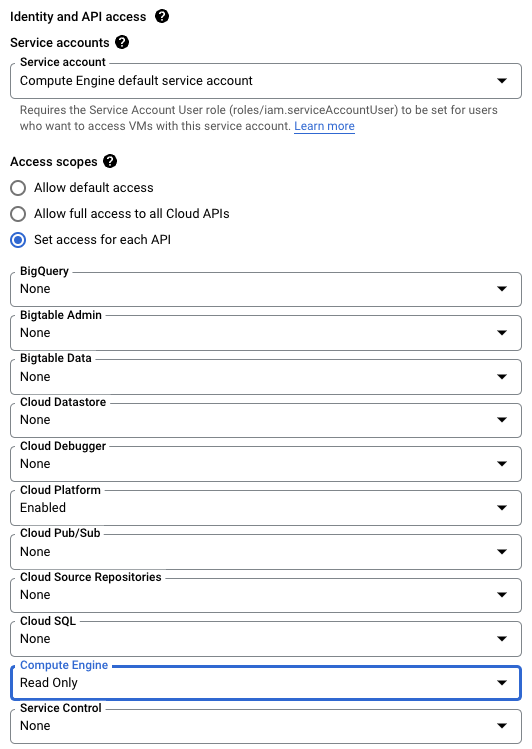
Select the Read Only option.
Select Save at the bottom of this page.
Restart your instance.
Validate Permissions for your Service Account
Most service accounts will be configured with the predefined Editor role and will have enough permissions to allow Lacework to access GCE, requiring no further action on your part. However, if your organization configures GCE service accounts differently, then your service account may not have enough permission. In this case, you or your administrator must either:
- Add a new role to the service account that contains this permission: OR
- Add the permission to a role that the service account already has. Note that this option is only available for custom roles.
For information about viewing and setting up roles for your service account, see Manage access to projects, folders, and organizations.
| Use Cases | Lacework Feature(s) | Data Source |
|---|---|---|
| User and Entity Behavior Analytics (UEBA) | Workload Anomaly Detection Process Dashboard and Polygraph Network Dashboard and Polygraph Filesystem Dashboard and Polygraph | Windows Agent |
- Prerequisites
Agent Supported Windows Operating Systems 📎
To analyze application, host, and user behavior, Lacework uses a lightweight Windows agent, which securely forwards collected metadata to the Lacework platform for analysis. The system requirements for the Windows agent are described below.
Supported Operating Systems
The Windows agent runs on the following 64-bit Windows Server operating systems:
| Operating System |
|---|
| Windows Server 2022 |
| Windows Server 2019 |
| Windows Server 2016 |
| Windows Server 2012 R2 |
| Windows Storage Server 2012 R2 |
- The operating system must support Transport Layer Security (TLS) 1.2.
- The Windows agent is not intended for use on personal computer versions of Windows operating systems that are installed on desktop computers, laptops, and workstations.
Supported PowerShell Versions
- PowerShell 5.0 or later version
Lacework recommends upgrading to a supported PowerShell version because the agent does not support monitoring suspicious PowerShell script executions in PowerShell versions older than 5.0.
Supported Deployments
The Windows agent supports the following flexible deployment models:
| Deployment Model |
|---|
| Active Directory |
| Standalone Deployments |
Cloud-Based Host Machine Recommendations
| Cloud Service | Instance Type | Recommendation |
|---|---|---|
| AWS | General Purpose (t2 & t3 types) Compute Optimized (c4 & c5) | Minimum 4vCPU machine |
| Azure | General Purpose (D2s & D4s types) | Minimum 4vCPU machine |
| GCP | e2-standard-4 | Minimum 4vCPU machine |
Other instances that meet the minimum requirements of the installed operating system are also supported. However, using a machine that does not meet the recommendations described above could result in higher CPU utilization by the agent.
On-premises Host Machine Recommendations
- 2 core CPU
- 4 GB RAM
Agent Network Requirements 📎
Connectivity
You must allowlist the following URLs to enable the agent to communicate with the Lacework platform:
- packages.lacework.net (for installing the agent)
- updates.lacework.net : TCP/443 (for upgrading the agent)
- api.lacework.net : TCP/443 (for US accounts)
- aprodus2.agent.lacework.net : TCP/443 (for US accounts)
- api.fra.lacework.net : TCP/443 (for EMEA accounts)
- auprodn1.agent.lacework.net : TCP/443 (for ANZ accounts)
- *.amazonaws.com (for retrieving metadata tags from AWS resources)
- https://compute.googleapis.com (for retrieving metadata labels from GCP resources)
- agentcheck.lacework.net
- agentcheck.lacework.dev
- agent.certprobe.lacework.net
Agents connect to agentcheck.lacework.net, agentcheck.lacework.dev, and agent.certprobe.lacework.net to enable Lacework to monitor agent connectivity with the Lacework platform. Lacework will notify you if an agent has connectivity issues.
If URLs cannot be used for rule writing:
api.lacework.netresolves to the following rotating IPs:34.209.102.252
34.212.241.15
34.212.79.17
35.164.176.181
44.225.189.230
44.230.246.102
52.35.54.98
52.43.136.187
54.185.31.7
162.159.137.89
162.159.138.89
168.100.6.0/23aprodus2.agent.lacework.netresolves to the following rotating IPs:162.159.137.89
162.159.138.89
168.100.6.0/23api.fra.lacework.netresolves to the following rotating IPs:162.159.134.54
162.159.135.54
162.159.137.89
162.159.138.89
168.100.6.0/23and
auprodn1.agent.lacework.netresolves to the following IP:162.159.137.89
162.159.138.89
168.100.6.0/23
If required, the agent can be configured to use a network proxy by adding proxy information to the config.json agent configuration file or by creating an https_proxy environment variable.
Proxies
Add Proxy Information to the Lacework Agent Configuration
To include proxy information, edit the proxyurl key in the config.json file:
{
  "proxyurl": "http://Your_Proxy_Server:Your_Port"
}
Or if your proxy requires a password:
{
  "proxyurl": "http://username:password@Your_Proxy_Server:Your_Port"
}
Add Proxy Information for Kubernetes
To include proxy information in a Kubernetes ConfigMap, you can use the same definition of a proxy as above, as illustrated in this sample lacework-cfg-k8s.yaml:
apiVersion: v1
kind: ConfigMap
metadata:
  name: lacework-config
data:
  config.json: |
    {"tokens":{"AccessToken":"${LaceworkAccessToken}"}, "proxyurl":"http://Your_Proxy_Server:Your_Port"}
Add an https_proxy Environment Variable
From the shell on the host where the agent resides, use the following command to add your proxy URL:
export https_proxy="http:Your_Proxy_Server:Your_Port"
Or if your proxy requires a password:
export https_proxy="http://username:password@Your_Proxy_Server:Your_Port"
Add a Certificate
This section describes the certificates required for the Lacework clouds. If a certificate is not present in the trust store, the agent will not be able to communicate with the Lacework platform. Most current operating systems include the required certificate by default. In certain older operating systems, you might need to add it explicitly.
Certificate for the US Cloud
The api.lacework.net US cloud supports the following Google Trust Services (GTS) Root R1 and GoDaddy certificates.
Google Trust Services (GTS) Root R1 Certificate
The GTS Root R1 certificate is as follows:
-----BEGIN CERTIFICATE-----
MIIFVzCCAz+gAwIBAgINAgPlk28xsBNJiGuiFzANBgkqhkiG9w0BAQwFADBHMQsw
CQYDVQQGEwJVUzEiMCAGA1UEChMZR29vZ2xlIFRydXN0IFNlcnZpY2VzIExMQzEU
MBIGA1UEAxMLR1RTIFJvb3QgUjEwHhcNMTYwNjIyMDAwMDAwWhcNMzYwNjIyMDAw
MDAwWjBHMQswCQYDVQQGEwJVUzEiMCAGA1UEChMZR29vZ2xlIFRydXN0IFNlcnZp
Y2VzIExMQzEUMBIGA1UEAxMLR1RTIFJvb3QgUjEwggIiMA0GCSqGSIb3DQEBAQUA
A4ICDwAwggIKAoICAQC2EQKLHuOhd5s73L+UPreVp0A8of2C+X0yBoJx9vaMf/vo
27xqLpeXo4xL+Sv2sfnOhB2x+cWX3u+58qPpvBKJXqeqUqv4IyfLpLGcY9vXmX7w
Cl7raKb0xlpHDU0QM+NOsROjyBhsS+z8CZDfnWQpJSMHobTSPS5g4M/SCYe7zUjw
TcLCeoiKu7rPWRnWr4+wB7CeMfGCwcDfLqZtbBkOtdh+JhpFAz2weaSUKK0Pfybl
qAj+lug8aJRT7oM6iCsVlgmy4HqMLnXWnOunVmSPlk9orj2XwoSPwLxAwAtcvfaH
szVsrBhQf4TgTM2S0yDpM7xSma8ytSmzJSq0SPly4cpk9+aCEI3oncKKiPo4Zor8
Y/kB+Xj9e1x3+naH+uzfsQ55lVe0vSbv1gHR6xYKu44LtcXFilWr06zqkUspzBmk
MiVOKvFlRNACzqrOSbTqn3yDsEB750Orp2yjj32JgfpMpf/VjsPOS+C12LOORc92
wO1AK/1TD7Cn1TsNsYqiA94xrcx36m97PtbfkSIS5r762DL8EGMUUXLeXdYWk70p
aDPvOmbsB4om3xPXV2V4J95eSRQAogB/mqghtqmxlbCluQ0WEdrHbEg8QOB+DVrN
VjzRlwW5y0vtOUucxD/SVRNuJLDWcfr0wbrM7Rv1/oFB2ACYPTrIrnqYNxgFlQID
AQABo0IwQDAOBgNVHQ8BAf8EBAMCAYYwDwYDVR0TAQH/BAUwAwEB/zAdBgNVHQ4E
FgQU5K8rJnEaK0gnhS9SZizv8IkTcT4wDQYJKoZIhvcNAQEMBQADggIBAJ+qQibb
C5u+/x6Wki4+omVKapi6Ist9wTrYggoGxval3sBOh2Z5ofmmWJyq+bXmYOfg6LEe
QkEzCzc9zolwFcq1JKjPa7XSQCGYzyI0zzvFIoTgxQ6KfF2I5DUkzps+GlQebtuy
h6f88/qBVRRiClmpIgUxPoLW7ttXNLwzldMXG+gnoot7TiYaelpkttGsN/H9oPM4
7HLwEXWdyzRSjeZ2axfG34arJ45JK3VmgRAhpuo+9K4l/3wV3s6MJT/KYnAK9y8J
ZgfIPxz88NtFMN9iiMG1D53Dn0reWVlHxYciNuaCp+0KueIHoI17eko8cdLiA6Ef
MgfdG+RCzgwARWGAtQsgWSl4vflVy2PFPEz0tv/bal8xa5meLMFrUKTX5hgUvYU/
Z6tGn6D/Qqc6f1zLXbBwHSs09dR2CQzreExZBfMzQsNhFRAbd03OIozUhfJFfbdT
6u9AWpQKXCBfTkBdYiJ23//OYb2MI3jSNwLgjt7RETeJ9r/tSQdirpLsQBqvFAnZ
0E6yove+7u7Y/9waLd64NnHi/Hm3lCXRSHNboTXns5lndcEZOitHTtNCjv0xyBZm
2tIMPNuzjsmhDYAPexZ3FL//2wmUspO8IFgV6dtxQ/PeEMMA3KgqlbbC1j+Qa3bb
bP6MvPJwNQzcmRk13NfIRmPVNnGuV/u3gm3c
-----END CERTIFICATE-----
GoDaddy Certificate
The GoDaddy certificate is as follows:
-----BEGIN CERTIFICATE-----
MIIEfTCCA2WgAwIBAgIDG+cVMA0GCSqGSIb3DQEBCwUAMGMxCzAJBgNVBAYTAlVT
MSEwHwYDVQQKExhUaGUgR28gRGFkZHkgR3JvdXAsIEluYy4xMTAvBgNVBAsTKEdv
IERhZGR5IENsYXNzIDIgQ2VydGlmaWNhdGlvbiBBdXRob3JpdHkwHhcNMTQwMTAx
MDcwMDAwWhcNMzEwNTMwMDcwMDAwWjCBgzELMAkGA1UEBhMCVVMxEDAOBgNVBAgT
B0FyaXpvbmExEzARBgNVBAcTClNjb3R0c2RhbGUxGjAYBgNVBAoTEUdvRGFkZHku
Y29tLCBJbmMuMTEwLwYDVQQDEyhHbyBEYWRkeSBSb290IENlcnRpZmljYXRlIEF1
dGhvcml0eSAtIEcyMIIBIjANBgkqhkiG9w0BAQEFAAOCAQ8AMIIBCgKCAQEAv3Fi
CPH6WTT3G8kYo/eASVjpIoMTpsUgQwE7hPHmhUmfJ+r2hBtOoLTbcJjHMgGxBT4H
Tu70+k8vWTAi56sZVmvigAf88xZ1gDlRe+X5NbZ0TqmNghPktj+pA4P6or6KFWp/
3gvDthkUBcrqw6gElDtGfDIN8wBmIsiNaW02jBEYt9OyHGC0OPoCjM7T3UYH3go+
6118yHz7sCtTpJJiaVElBWEaRIGMLKlDliPfrDqBmg4pxRyp6V0etp6eMAo5zvGI
gPtLXcwy7IViQyU0AlYnAZG0O3AqP26x6JyIAX2f1PnbU21gnb8s51iruF9G/M7E
GwM8CetJMVxpRrPgRwIDAQABo4IBFzCCARMwDwYDVR0TAQH/BAUwAwEB/zAOBgNV
HQ8BAf8EBAMCAQYwHQYDVR0OBBYEFDqahQcQZyi27/a9BUFuIMGU2g/eMB8GA1Ud
IwQYMBaAFNLEsNKR1EwRcbNhyz2h/t2oatTjMDQGCCsGAQUFBwEBBCgwJjAkBggr
BgEFBQcwAYYYaHR0cDovL29jc3AuZ29kYWRkeS5jb20vMDIGA1UdHwQrMCkwJ6Al
oCOGIWh0dHA6Ly9jcmwuZ29kYWRkeS5jb20vZ2Ryb290LmNybDBGBgNVHSAEPzA9
MDsGBFUdIAAwMzAxBggrBgEFBQcCARYlaHR0cHM6Ly9jZXJ0cy5nb2RhZGR5LmNv
bS9yZXBvc2l0b3J5LzANBgkqhkiG9w0BAQsFAAOCAQEAWQtTvZKGEacke+1bMc8d
H2xwxbhuvk679r6XUOEwf7ooXGKUwuN+M/f7QnaF25UcjCJYdQkMiGVnOQoWCcWg
OJekxSOTP7QYpgEGRJHjp2kntFolfzq3Ms3dhP8qOCkzpN1nsoX+oYggHFCJyNwq
9kIDN0zmiN/VryTyscPfzLXs4Jlet0lUIDyUGAzHHFIYSaRt4bNYC8nY7NmuHDKO
KHAN4v6mF56ED71XcLNa6R+ghlO773z/aQvgSMO3kwvIClTErF0UZzdsyqUvMQg3
qm5vjLyb4lddJIGvl5echK1srDdMZvNhkREg5L4wn3qkKQmw4TRfZHcYQFHfjDCm
rw==
-----END CERTIFICATE-----
Certificate for the APRODUS2, ANZ, and EU Cloud
For the APRODUS2, ANZ, and EU cloud, Lacework supports the following Google Trust Services (GTS) Root R1 and Digicert Baltimore CyberTrust Root certificates.
Google Trust Services (GTS) Root R1 Certificate
The GTS Root R1 certificate is as follows:
-----BEGIN CERTIFICATE-----
MIIFVzCCAz+gAwIBAgINAgPlk28xsBNJiGuiFzANBgkqhkiG9w0BAQwFADBHMQsw
CQYDVQQGEwJVUzEiMCAGA1UEChMZR29vZ2xlIFRydXN0IFNlcnZpY2VzIExMQzEU
MBIGA1UEAxMLR1RTIFJvb3QgUjEwHhcNMTYwNjIyMDAwMDAwWhcNMzYwNjIyMDAw
MDAwWjBHMQswCQYDVQQGEwJVUzEiMCAGA1UEChMZR29vZ2xlIFRydXN0IFNlcnZp
Y2VzIExMQzEUMBIGA1UEAxMLR1RTIFJvb3QgUjEwggIiMA0GCSqGSIb3DQEBAQUA
A4ICDwAwggIKAoICAQC2EQKLHuOhd5s73L+UPreVp0A8of2C+X0yBoJx9vaMf/vo
27xqLpeXo4xL+Sv2sfnOhB2x+cWX3u+58qPpvBKJXqeqUqv4IyfLpLGcY9vXmX7w
Cl7raKb0xlpHDU0QM+NOsROjyBhsS+z8CZDfnWQpJSMHobTSPS5g4M/SCYe7zUjw
TcLCeoiKu7rPWRnWr4+wB7CeMfGCwcDfLqZtbBkOtdh+JhpFAz2weaSUKK0Pfybl
qAj+lug8aJRT7oM6iCsVlgmy4HqMLnXWnOunVmSPlk9orj2XwoSPwLxAwAtcvfaH
szVsrBhQf4TgTM2S0yDpM7xSma8ytSmzJSq0SPly4cpk9+aCEI3oncKKiPo4Zor8
Y/kB+Xj9e1x3+naH+uzfsQ55lVe0vSbv1gHR6xYKu44LtcXFilWr06zqkUspzBmk
MiVOKvFlRNACzqrOSbTqn3yDsEB750Orp2yjj32JgfpMpf/VjsPOS+C12LOORc92
wO1AK/1TD7Cn1TsNsYqiA94xrcx36m97PtbfkSIS5r762DL8EGMUUXLeXdYWk70p
aDPvOmbsB4om3xPXV2V4J95eSRQAogB/mqghtqmxlbCluQ0WEdrHbEg8QOB+DVrN
VjzRlwW5y0vtOUucxD/SVRNuJLDWcfr0wbrM7Rv1/oFB2ACYPTrIrnqYNxgFlQID
AQABo0IwQDAOBgNVHQ8BAf8EBAMCAYYwDwYDVR0TAQH/BAUwAwEB/zAdBgNVHQ4E
FgQU5K8rJnEaK0gnhS9SZizv8IkTcT4wDQYJKoZIhvcNAQEMBQADggIBAJ+qQibb
C5u+/x6Wki4+omVKapi6Ist9wTrYggoGxval3sBOh2Z5ofmmWJyq+bXmYOfg6LEe
QkEzCzc9zolwFcq1JKjPa7XSQCGYzyI0zzvFIoTgxQ6KfF2I5DUkzps+GlQebtuy
h6f88/qBVRRiClmpIgUxPoLW7ttXNLwzldMXG+gnoot7TiYaelpkttGsN/H9oPM4
7HLwEXWdyzRSjeZ2axfG34arJ45JK3VmgRAhpuo+9K4l/3wV3s6MJT/KYnAK9y8J
ZgfIPxz88NtFMN9iiMG1D53Dn0reWVlHxYciNuaCp+0KueIHoI17eko8cdLiA6Ef
MgfdG+RCzgwARWGAtQsgWSl4vflVy2PFPEz0tv/bal8xa5meLMFrUKTX5hgUvYU/
Z6tGn6D/Qqc6f1zLXbBwHSs09dR2CQzreExZBfMzQsNhFRAbd03OIozUhfJFfbdT
6u9AWpQKXCBfTkBdYiJ23//OYb2MI3jSNwLgjt7RETeJ9r/tSQdirpLsQBqvFAnZ
0E6yove+7u7Y/9waLd64NnHi/Hm3lCXRSHNboTXns5lndcEZOitHTtNCjv0xyBZm
2tIMPNuzjsmhDYAPexZ3FL//2wmUspO8IFgV6dtxQ/PeEMMA3KgqlbbC1j+Qa3bb
bP6MvPJwNQzcmRk13NfIRmPVNnGuV/u3gm3c
-----END CERTIFICATE-----
Digicert Baltimore CyberTrust Root Certificate
The Digicert Baltimore CyberTrust Root Certificate is as follows:
-----BEGIN CERTIFICATE-----
MIIDdzCCAl+gAwIBAgIEAgAAuTANBgkqhkiG9w0BAQUFADBaMQswCQYDVQQGEwJJ
RTESMBAGA1UEChMJQmFsdGltb3JlMRMwEQYDVQQLEwpDeWJlclRydXN0MSIwIAYD
VQQDExlCYWx0aW1vcmUgQ3liZXJUcnVzdCBSb290MB4XDTAwMDUxMjE4NDYwMFoX
DTI1MDUxMjIzNTkwMFowWjELMAkGA1UEBhMCSUUxEjAQBgNVBAoTCUJhbHRpbW9y
ZTETMBEGA1UECxMKQ3liZXJUcnVzdDEiMCAGA1UEAxMZQmFsdGltb3JlIEN5YmVy
VHJ1c3QgUm9vdDCCASIwDQYJKoZIhvcNAQEBBQADggEPADCCAQoCggEBAKMEuyKr
mD1X6CZymrV51Cni4eiVgLGw41uOKymaZN+hXe2wCQVt2yguzmKiYv60iNoS6zjr
IZ3AQSsBUnuId9Mcj8e6uYi1agnnc+gRQKfRzMpijS3ljwumUNKoUMMo6vWrJYeK
mpYcqWe4PwzV9/lSEy/CG9VwcPCPwBLKBsua4dnKM3p31vjsufFoREJIE9LAwqSu
XmD+tqYF/LTdB1kC1FkYmGP1pWPgkAx9XbIGevOF6uvUA65ehD5f/xXtabz5OTZy
dc93Uk3zyZAsuT3lySNTPx8kmCFcB5kpvcY67Oduhjprl3RjM71oGDHweI12v/ye
jl0qhqdNkNwnGjkCAwEAAaNFMEMwHQYDVR0OBBYEFOWdWTCCR1jMrPoIVDaGezq1
BE3wMBIGA1UdEwEB/wQIMAYBAf8CAQMwDgYDVR0PAQH/BAQDAgEGMA0GCSqGSIb3
DQEBBQUAA4IBAQCFDF2O5G9RaEIFoN27TyclhAO992T9Ldcw46QQF+vaKSm2eT92
9hkTI7gQCvlYpNRhcL0EYWoSihfVCr3FvDB81ukMJY2GQE/szKN+OMY3EU/t3Wgx
jkzSswF07r51XgdIGn9w/xZchMB5hbgF/X++ZRGjD8ACtPhSNzkE1akxehi/oCr0
Epn3o0WC4zxe9Z2etciefC7IpJ5OCBRLbf1wbWsaY71k5h+3zvDyny67G7fyUIhz
ksLi4xaNmjICq44Y3ekQEe5+NauQrz4wlHrQMz2nZQ/1/I6eYs9HRCwBXbsdtTLS
R9I4LtD+gdwyah617jzV/OeBHRnDJELqYzmp
-----END CERTIFICATE-----
Configure Agent Access to AWS Tags 📎
The Lacework agent can retrieve user defined tags and other metadata from the AWS EC2 instances on which the agent is installed.
For the agent to retrieve user defined tags, the EC2 instance must have the DescribeTags IAM permission. For the agent to retrieve other metadata such as the ID of the organization in which the EC2 instance exists, the instance must have the DescribeOrganization IAM permission.
To provide the necessary permission, complete the following steps:
Log in to the IAM service.
Click Policies.
Click Create policy.
Click the JSON tab and replace the displayed policy with the following text.
    {
       "Version": "2012-10-17",
       "Statement": [
          {
             "Effect": "Allow",
             "Action": [
                "ec2:DescribeTags",
                "organizations:DescribeOrganization"
             ],
            "Resource": "*"
          }
       ]
    }
Click Next: Tags
Click Next: Review.
Enter a policy name and description.
Click Create policy.
After creating the policy, associate it with an IAM role that can be attached to EC2 instances.
- Log in to the IAM service.
- Click Roles.
- Click Create role.
- Select AWS service as the trusted entity type and EC2 as the use case.
- Click Next.
- Search for the policy you created, click it, and click Next.
- Enter a role name, update the description if you want, and click Create role.
After creating the policy and role, navigate to the EC2 service and do the following:
Select the instance for which you want to retrieve the tags and metadata.
Under Actions > Security > Modify IAM role, select the IAM role you created and click Update IAM role.
The next time the Lacework agent forwards data, you will see the AWS tags and metadata in the Machine Tag Summary table in the Machines dossier in the Lacework Console.
In addition to retrieving AWS tags and metadata, you can add local tags to agents. For details, see Add Agent Tags.
Configure Agent Access to Google Cloud Tags 📎
Google Cloud supports user-defined labels to organize your Google Cloud resources. For more information, see Creating and Managing Labels.
For the Lacework agent to be able to retrieve user-defined labels on Google Compute Engine (GCE) instances, the service account associated with the instance must have sufficient authorization to retrieve this information over the Compute Engine API. In particular, the instance and its associated service account must possess:
- Read access to the GCE API
- compute.instances.get IAM permission
Configure Access to the Google Compute Engine API
The GCE instance requires the compute.readonly OAuth scope, but broader scopes, such as compute and cloud-platform, also fulfill this minimum level of permission. The default GCE instance policy does not usually contain this scope. So, you need to configure this level of permission to allow Lacework to access the GCE API.
In the Google Cloud Console, click Compute Engine, select the VM Instances page, and then select your instance.
Stop your instance.
On your instance’s page, click Show Details under API and identity management.
See if the menu item for the Compute Engine API is set to either Read Only or Read Write (corresponding to the compute.readonly and compute OAuth scopes, respectively). Alternatively, see if the Cloud API access scopes is set to Allow Full Access (corresponding to the cloud-platform scope).
If the instance does not have any of the permissions described, click Edit.
Scroll down to find a series of drop-downs that grant access to the various Google Cloud APIs and locate the Compute Engine API dropdown.
Select the Read Only option.
Select Save at the bottom of this page.
Restart your instance.
Validate Permissions for your Service Account
Most service accounts will be configured with the predefined Editor role and will have enough permissions to allow Lacework to access GCE, requiring no further action on your part. However, if your organization configures GCE service accounts differently, then your service account may not have enough permission. In this case, you or your administrator must either:
- Add a new role to the service account that contains this permission: OR
- Add the permission to a role that the service account already has. Note that this option is only available for custom roles.
For information about viewing and setting up roles for your service account, see Manage access to projects, folders, and organizations.
| Use Cases | Lacework Feature(s) | Data Source |
|---|---|---|
| User and Entity Behavior Analytics (UEBA) | Workload Anomaly Detection Process Dashboard and Polygraph Network Dashboard and Polygraph Filesystem Dashboard and Polygraph | Kubernetes Agent |
| Vulnerability Management | Container Vulnerability Management | Kubernetes Admission Controller |
- Prerequisites
Lacework Agent Daemonset
Agent Supported Kubernetes Environments 📎
The Lacework Linux agent supports the following Kubernetes versions, managed Kubernetes services, container network interfaces (CNI), service meshes, and container runtime engines:
| Kubernetes Environment | Environment Name |
|---|---|
| Kubernetes versions | 1.9.x to 1.28 |
| K8s orchestrators | AKS EKS GKE EKS EKS Fargate ECS Fargate MicroK8s Openshift Rancher ROSA |
| CNI | Weavenet Calico Flannel Cilium kubenet |
| Service mesh | Linkerd 2.11, 2.12 |
| Container runtime engine | Docker Containerd CRI-O |
For more information about deploying the Linux agent on Kubernetes environments, see Deploy Linux Agent on Kubernetes.
Agent Network Requirements 📎
Connectivity
You must allowlist the following URLs to enable the agent to communicate with the Lacework platform:
- packages.lacework.net (for installing the agent)
- updates.lacework.net : TCP/443 (for upgrading the agent)
- api.lacework.net : TCP/443 (for US accounts)
- aprodus2.agent.lacework.net : TCP/443 (for US accounts)
- api.fra.lacework.net : TCP/443 (for EMEA accounts)
- auprodn1.agent.lacework.net : TCP/443 (for ANZ accounts)
- *.amazonaws.com (for retrieving metadata tags from AWS resources)
- https://compute.googleapis.com (for retrieving metadata labels from GCP resources)
- agentcheck.lacework.net
- agentcheck.lacework.dev
- agent.certprobe.lacework.net
Agents connect to agentcheck.lacework.net, agentcheck.lacework.dev, and agent.certprobe.lacework.net to enable Lacework to monitor agent connectivity with the Lacework platform. Lacework will notify you if an agent has connectivity issues.
If URLs cannot be used for rule writing:
api.lacework.netresolves to the following rotating IPs:34.209.102.252
34.212.241.15
34.212.79.17
35.164.176.181
44.225.189.230
44.230.246.102
52.35.54.98
52.43.136.187
54.185.31.7
162.159.137.89
162.159.138.89
168.100.6.0/23aprodus2.agent.lacework.netresolves to the following rotating IPs:162.159.137.89
162.159.138.89
168.100.6.0/23api.fra.lacework.netresolves to the following rotating IPs:162.159.134.54
162.159.135.54
162.159.137.89
162.159.138.89
168.100.6.0/23and
auprodn1.agent.lacework.netresolves to the following IP:162.159.137.89
162.159.138.89
168.100.6.0/23
If required, the agent can be configured to use a network proxy by adding proxy information to the config.json agent configuration file or by creating an https_proxy environment variable.
Proxies
Add Proxy Information to the Lacework Agent Configuration
To include proxy information, edit the proxyurl key in the config.json file:
{
  "proxyurl": "http://Your_Proxy_Server:Your_Port"
}
Or if your proxy requires a password:
{
  "proxyurl": "http://username:password@Your_Proxy_Server:Your_Port"
}
Add Proxy Information for Kubernetes
To include proxy information in a Kubernetes ConfigMap, you can use the same definition of a proxy as above, as illustrated in this sample lacework-cfg-k8s.yaml:
apiVersion: v1
kind: ConfigMap
metadata:
  name: lacework-config
data:
  config.json: |
    {"tokens":{"AccessToken":"${LaceworkAccessToken}"}, "proxyurl":"http://Your_Proxy_Server:Your_Port"}
Add an https_proxy Environment Variable
From the shell on the host where the agent resides, use the following command to add your proxy URL:
export https_proxy="http:Your_Proxy_Server:Your_Port"
Or if your proxy requires a password:
export https_proxy="http://username:password@Your_Proxy_Server:Your_Port"
Add a Certificate
This section describes the certificates required for the Lacework clouds. If a certificate is not present in the trust store, the agent will not be able to communicate with the Lacework platform. Most current operating systems include the required certificate by default. In certain older operating systems, you might need to add it explicitly.
Certificate for the US Cloud
The api.lacework.net US cloud supports the following Google Trust Services (GTS) Root R1 and GoDaddy certificates.
Google Trust Services (GTS) Root R1 Certificate
The GTS Root R1 certificate is as follows:
-----BEGIN CERTIFICATE-----
MIIFVzCCAz+gAwIBAgINAgPlk28xsBNJiGuiFzANBgkqhkiG9w0BAQwFADBHMQsw
CQYDVQQGEwJVUzEiMCAGA1UEChMZR29vZ2xlIFRydXN0IFNlcnZpY2VzIExMQzEU
MBIGA1UEAxMLR1RTIFJvb3QgUjEwHhcNMTYwNjIyMDAwMDAwWhcNMzYwNjIyMDAw
MDAwWjBHMQswCQYDVQQGEwJVUzEiMCAGA1UEChMZR29vZ2xlIFRydXN0IFNlcnZp
Y2VzIExMQzEUMBIGA1UEAxMLR1RTIFJvb3QgUjEwggIiMA0GCSqGSIb3DQEBAQUA
A4ICDwAwggIKAoICAQC2EQKLHuOhd5s73L+UPreVp0A8of2C+X0yBoJx9vaMf/vo
27xqLpeXo4xL+Sv2sfnOhB2x+cWX3u+58qPpvBKJXqeqUqv4IyfLpLGcY9vXmX7w
Cl7raKb0xlpHDU0QM+NOsROjyBhsS+z8CZDfnWQpJSMHobTSPS5g4M/SCYe7zUjw
TcLCeoiKu7rPWRnWr4+wB7CeMfGCwcDfLqZtbBkOtdh+JhpFAz2weaSUKK0Pfybl
qAj+lug8aJRT7oM6iCsVlgmy4HqMLnXWnOunVmSPlk9orj2XwoSPwLxAwAtcvfaH
szVsrBhQf4TgTM2S0yDpM7xSma8ytSmzJSq0SPly4cpk9+aCEI3oncKKiPo4Zor8
Y/kB+Xj9e1x3+naH+uzfsQ55lVe0vSbv1gHR6xYKu44LtcXFilWr06zqkUspzBmk
MiVOKvFlRNACzqrOSbTqn3yDsEB750Orp2yjj32JgfpMpf/VjsPOS+C12LOORc92
wO1AK/1TD7Cn1TsNsYqiA94xrcx36m97PtbfkSIS5r762DL8EGMUUXLeXdYWk70p
aDPvOmbsB4om3xPXV2V4J95eSRQAogB/mqghtqmxlbCluQ0WEdrHbEg8QOB+DVrN
VjzRlwW5y0vtOUucxD/SVRNuJLDWcfr0wbrM7Rv1/oFB2ACYPTrIrnqYNxgFlQID
AQABo0IwQDAOBgNVHQ8BAf8EBAMCAYYwDwYDVR0TAQH/BAUwAwEB/zAdBgNVHQ4E
FgQU5K8rJnEaK0gnhS9SZizv8IkTcT4wDQYJKoZIhvcNAQEMBQADggIBAJ+qQibb
C5u+/x6Wki4+omVKapi6Ist9wTrYggoGxval3sBOh2Z5ofmmWJyq+bXmYOfg6LEe
QkEzCzc9zolwFcq1JKjPa7XSQCGYzyI0zzvFIoTgxQ6KfF2I5DUkzps+GlQebtuy
h6f88/qBVRRiClmpIgUxPoLW7ttXNLwzldMXG+gnoot7TiYaelpkttGsN/H9oPM4
7HLwEXWdyzRSjeZ2axfG34arJ45JK3VmgRAhpuo+9K4l/3wV3s6MJT/KYnAK9y8J
ZgfIPxz88NtFMN9iiMG1D53Dn0reWVlHxYciNuaCp+0KueIHoI17eko8cdLiA6Ef
MgfdG+RCzgwARWGAtQsgWSl4vflVy2PFPEz0tv/bal8xa5meLMFrUKTX5hgUvYU/
Z6tGn6D/Qqc6f1zLXbBwHSs09dR2CQzreExZBfMzQsNhFRAbd03OIozUhfJFfbdT
6u9AWpQKXCBfTkBdYiJ23//OYb2MI3jSNwLgjt7RETeJ9r/tSQdirpLsQBqvFAnZ
0E6yove+7u7Y/9waLd64NnHi/Hm3lCXRSHNboTXns5lndcEZOitHTtNCjv0xyBZm
2tIMPNuzjsmhDYAPexZ3FL//2wmUspO8IFgV6dtxQ/PeEMMA3KgqlbbC1j+Qa3bb
bP6MvPJwNQzcmRk13NfIRmPVNnGuV/u3gm3c
-----END CERTIFICATE-----
GoDaddy Certificate
The GoDaddy certificate is as follows:
-----BEGIN CERTIFICATE-----
MIIEfTCCA2WgAwIBAgIDG+cVMA0GCSqGSIb3DQEBCwUAMGMxCzAJBgNVBAYTAlVT
MSEwHwYDVQQKExhUaGUgR28gRGFkZHkgR3JvdXAsIEluYy4xMTAvBgNVBAsTKEdv
IERhZGR5IENsYXNzIDIgQ2VydGlmaWNhdGlvbiBBdXRob3JpdHkwHhcNMTQwMTAx
MDcwMDAwWhcNMzEwNTMwMDcwMDAwWjCBgzELMAkGA1UEBhMCVVMxEDAOBgNVBAgT
B0FyaXpvbmExEzARBgNVBAcTClNjb3R0c2RhbGUxGjAYBgNVBAoTEUdvRGFkZHku
Y29tLCBJbmMuMTEwLwYDVQQDEyhHbyBEYWRkeSBSb290IENlcnRpZmljYXRlIEF1
dGhvcml0eSAtIEcyMIIBIjANBgkqhkiG9w0BAQEFAAOCAQ8AMIIBCgKCAQEAv3Fi
CPH6WTT3G8kYo/eASVjpIoMTpsUgQwE7hPHmhUmfJ+r2hBtOoLTbcJjHMgGxBT4H
Tu70+k8vWTAi56sZVmvigAf88xZ1gDlRe+X5NbZ0TqmNghPktj+pA4P6or6KFWp/
3gvDthkUBcrqw6gElDtGfDIN8wBmIsiNaW02jBEYt9OyHGC0OPoCjM7T3UYH3go+
6118yHz7sCtTpJJiaVElBWEaRIGMLKlDliPfrDqBmg4pxRyp6V0etp6eMAo5zvGI
gPtLXcwy7IViQyU0AlYnAZG0O3AqP26x6JyIAX2f1PnbU21gnb8s51iruF9G/M7E
GwM8CetJMVxpRrPgRwIDAQABo4IBFzCCARMwDwYDVR0TAQH/BAUwAwEB/zAOBgNV
HQ8BAf8EBAMCAQYwHQYDVR0OBBYEFDqahQcQZyi27/a9BUFuIMGU2g/eMB8GA1Ud
IwQYMBaAFNLEsNKR1EwRcbNhyz2h/t2oatTjMDQGCCsGAQUFBwEBBCgwJjAkBggr
BgEFBQcwAYYYaHR0cDovL29jc3AuZ29kYWRkeS5jb20vMDIGA1UdHwQrMCkwJ6Al
oCOGIWh0dHA6Ly9jcmwuZ29kYWRkeS5jb20vZ2Ryb290LmNybDBGBgNVHSAEPzA9
MDsGBFUdIAAwMzAxBggrBgEFBQcCARYlaHR0cHM6Ly9jZXJ0cy5nb2RhZGR5LmNv
bS9yZXBvc2l0b3J5LzANBgkqhkiG9w0BAQsFAAOCAQEAWQtTvZKGEacke+1bMc8d
H2xwxbhuvk679r6XUOEwf7ooXGKUwuN+M/f7QnaF25UcjCJYdQkMiGVnOQoWCcWg
OJekxSOTP7QYpgEGRJHjp2kntFolfzq3Ms3dhP8qOCkzpN1nsoX+oYggHFCJyNwq
9kIDN0zmiN/VryTyscPfzLXs4Jlet0lUIDyUGAzHHFIYSaRt4bNYC8nY7NmuHDKO
KHAN4v6mF56ED71XcLNa6R+ghlO773z/aQvgSMO3kwvIClTErF0UZzdsyqUvMQg3
qm5vjLyb4lddJIGvl5echK1srDdMZvNhkREg5L4wn3qkKQmw4TRfZHcYQFHfjDCm
rw==
-----END CERTIFICATE-----
Certificate for the APRODUS2, ANZ, and EU Cloud
For the APRODUS2, ANZ, and EU cloud, Lacework supports the following Google Trust Services (GTS) Root R1 and Digicert Baltimore CyberTrust Root certificates.
Google Trust Services (GTS) Root R1 Certificate
The GTS Root R1 certificate is as follows:
-----BEGIN CERTIFICATE-----
MIIFVzCCAz+gAwIBAgINAgPlk28xsBNJiGuiFzANBgkqhkiG9w0BAQwFADBHMQsw
CQYDVQQGEwJVUzEiMCAGA1UEChMZR29vZ2xlIFRydXN0IFNlcnZpY2VzIExMQzEU
MBIGA1UEAxMLR1RTIFJvb3QgUjEwHhcNMTYwNjIyMDAwMDAwWhcNMzYwNjIyMDAw
MDAwWjBHMQswCQYDVQQGEwJVUzEiMCAGA1UEChMZR29vZ2xlIFRydXN0IFNlcnZp
Y2VzIExMQzEUMBIGA1UEAxMLR1RTIFJvb3QgUjEwggIiMA0GCSqGSIb3DQEBAQUA
A4ICDwAwggIKAoICAQC2EQKLHuOhd5s73L+UPreVp0A8of2C+X0yBoJx9vaMf/vo
27xqLpeXo4xL+Sv2sfnOhB2x+cWX3u+58qPpvBKJXqeqUqv4IyfLpLGcY9vXmX7w
Cl7raKb0xlpHDU0QM+NOsROjyBhsS+z8CZDfnWQpJSMHobTSPS5g4M/SCYe7zUjw
TcLCeoiKu7rPWRnWr4+wB7CeMfGCwcDfLqZtbBkOtdh+JhpFAz2weaSUKK0Pfybl
qAj+lug8aJRT7oM6iCsVlgmy4HqMLnXWnOunVmSPlk9orj2XwoSPwLxAwAtcvfaH
szVsrBhQf4TgTM2S0yDpM7xSma8ytSmzJSq0SPly4cpk9+aCEI3oncKKiPo4Zor8
Y/kB+Xj9e1x3+naH+uzfsQ55lVe0vSbv1gHR6xYKu44LtcXFilWr06zqkUspzBmk
MiVOKvFlRNACzqrOSbTqn3yDsEB750Orp2yjj32JgfpMpf/VjsPOS+C12LOORc92
wO1AK/1TD7Cn1TsNsYqiA94xrcx36m97PtbfkSIS5r762DL8EGMUUXLeXdYWk70p
aDPvOmbsB4om3xPXV2V4J95eSRQAogB/mqghtqmxlbCluQ0WEdrHbEg8QOB+DVrN
VjzRlwW5y0vtOUucxD/SVRNuJLDWcfr0wbrM7Rv1/oFB2ACYPTrIrnqYNxgFlQID
AQABo0IwQDAOBgNVHQ8BAf8EBAMCAYYwDwYDVR0TAQH/BAUwAwEB/zAdBgNVHQ4E
FgQU5K8rJnEaK0gnhS9SZizv8IkTcT4wDQYJKoZIhvcNAQEMBQADggIBAJ+qQibb
C5u+/x6Wki4+omVKapi6Ist9wTrYggoGxval3sBOh2Z5ofmmWJyq+bXmYOfg6LEe
QkEzCzc9zolwFcq1JKjPa7XSQCGYzyI0zzvFIoTgxQ6KfF2I5DUkzps+GlQebtuy
h6f88/qBVRRiClmpIgUxPoLW7ttXNLwzldMXG+gnoot7TiYaelpkttGsN/H9oPM4
7HLwEXWdyzRSjeZ2axfG34arJ45JK3VmgRAhpuo+9K4l/3wV3s6MJT/KYnAK9y8J
ZgfIPxz88NtFMN9iiMG1D53Dn0reWVlHxYciNuaCp+0KueIHoI17eko8cdLiA6Ef
MgfdG+RCzgwARWGAtQsgWSl4vflVy2PFPEz0tv/bal8xa5meLMFrUKTX5hgUvYU/
Z6tGn6D/Qqc6f1zLXbBwHSs09dR2CQzreExZBfMzQsNhFRAbd03OIozUhfJFfbdT
6u9AWpQKXCBfTkBdYiJ23//OYb2MI3jSNwLgjt7RETeJ9r/tSQdirpLsQBqvFAnZ
0E6yove+7u7Y/9waLd64NnHi/Hm3lCXRSHNboTXns5lndcEZOitHTtNCjv0xyBZm
2tIMPNuzjsmhDYAPexZ3FL//2wmUspO8IFgV6dtxQ/PeEMMA3KgqlbbC1j+Qa3bb
bP6MvPJwNQzcmRk13NfIRmPVNnGuV/u3gm3c
-----END CERTIFICATE-----
Digicert Baltimore CyberTrust Root Certificate
The Digicert Baltimore CyberTrust Root Certificate is as follows:
-----BEGIN CERTIFICATE-----
MIIDdzCCAl+gAwIBAgIEAgAAuTANBgkqhkiG9w0BAQUFADBaMQswCQYDVQQGEwJJ
RTESMBAGA1UEChMJQmFsdGltb3JlMRMwEQYDVQQLEwpDeWJlclRydXN0MSIwIAYD
VQQDExlCYWx0aW1vcmUgQ3liZXJUcnVzdCBSb290MB4XDTAwMDUxMjE4NDYwMFoX
DTI1MDUxMjIzNTkwMFowWjELMAkGA1UEBhMCSUUxEjAQBgNVBAoTCUJhbHRpbW9y
ZTETMBEGA1UECxMKQ3liZXJUcnVzdDEiMCAGA1UEAxMZQmFsdGltb3JlIEN5YmVy
VHJ1c3QgUm9vdDCCASIwDQYJKoZIhvcNAQEBBQADggEPADCCAQoCggEBAKMEuyKr
mD1X6CZymrV51Cni4eiVgLGw41uOKymaZN+hXe2wCQVt2yguzmKiYv60iNoS6zjr
IZ3AQSsBUnuId9Mcj8e6uYi1agnnc+gRQKfRzMpijS3ljwumUNKoUMMo6vWrJYeK
mpYcqWe4PwzV9/lSEy/CG9VwcPCPwBLKBsua4dnKM3p31vjsufFoREJIE9LAwqSu
XmD+tqYF/LTdB1kC1FkYmGP1pWPgkAx9XbIGevOF6uvUA65ehD5f/xXtabz5OTZy
dc93Uk3zyZAsuT3lySNTPx8kmCFcB5kpvcY67Oduhjprl3RjM71oGDHweI12v/ye
jl0qhqdNkNwnGjkCAwEAAaNFMEMwHQYDVR0OBBYEFOWdWTCCR1jMrPoIVDaGezq1
BE3wMBIGA1UdEwEB/wQIMAYBAf8CAQMwDgYDVR0PAQH/BAQDAgEGMA0GCSqGSIb3
DQEBBQUAA4IBAQCFDF2O5G9RaEIFoN27TyclhAO992T9Ldcw46QQF+vaKSm2eT92
9hkTI7gQCvlYpNRhcL0EYWoSihfVCr3FvDB81ukMJY2GQE/szKN+OMY3EU/t3Wgx
jkzSswF07r51XgdIGn9w/xZchMB5hbgF/X++ZRGjD8ACtPhSNzkE1akxehi/oCr0
Epn3o0WC4zxe9Z2etciefC7IpJ5OCBRLbf1wbWsaY71k5h+3zvDyny67G7fyUIhz
ksLi4xaNmjICq44Y3ekQEe5+NauQrz4wlHrQMz2nZQ/1/I6eYs9HRCwBXbsdtTLS
R9I4LtD+gdwyah617jzV/OeBHRnDJELqYzmp
-----END CERTIFICATE-----
Configure Agent Access to AWS Tags 📎
The Lacework agent can retrieve user defined tags and other metadata from the AWS EC2 instances on which the agent is installed.
For the agent to retrieve user defined tags, the EC2 instance must have the DescribeTags IAM permission. For the agent to retrieve other metadata such as the ID of the organization in which the EC2 instance exists, the instance must have the DescribeOrganization IAM permission.
To provide the necessary permission, complete the following steps:
Log in to the IAM service.
Click Policies.
Click Create policy.
Click the JSON tab and replace the displayed policy with the following text.
    {
       "Version": "2012-10-17",
       "Statement": [
          {
             "Effect": "Allow",
             "Action": [
                "ec2:DescribeTags",
                "organizations:DescribeOrganization"
             ],
            "Resource": "*"
          }
       ]
    }
Click Next: Tags
Click Next: Review.
Enter a policy name and description.
Click Create policy.
After creating the policy, associate it with an IAM role that can be attached to EC2 instances.
- Log in to the IAM service.
- Click Roles.
- Click Create role.
- Select AWS service as the trusted entity type and EC2 as the use case.
- Click Next.
- Search for the policy you created, click it, and click Next.
- Enter a role name, update the description if you want, and click Create role.
After creating the policy and role, navigate to the EC2 service and do the following:
Select the instance for which you want to retrieve the tags and metadata.
Under Actions > Security > Modify IAM role, select the IAM role you created and click Update IAM role.
The next time the Lacework agent forwards data, you will see the AWS tags and metadata in the Machine Tag Summary table in the Machines dossier in the Lacework Console.
In addition to retrieving AWS tags and metadata, you can add local tags to agents. For details, see Add Agent Tags.
Configure Agent Access to Google Cloud Tags 📎
Google Cloud supports user-defined labels to organize your Google Cloud resources. For more information, see Creating and Managing Labels.
For the Lacework agent to be able to retrieve user-defined labels on Google Compute Engine (GCE) instances, the service account associated with the instance must have sufficient authorization to retrieve this information over the Compute Engine API. In particular, the instance and its associated service account must possess:
- Read access to the GCE API
- compute.instances.get IAM permission
Configure Access to the Google Compute Engine API
The GCE instance requires the compute.readonly OAuth scope, but broader scopes, such as compute and cloud-platform, also fulfill this minimum level of permission. The default GCE instance policy does not usually contain this scope. So, you need to configure this level of permission to allow Lacework to access the GCE API.
In the Google Cloud Console, click Compute Engine, select the VM Instances page, and then select your instance.
Stop your instance.
On your instance’s page, click Show Details under API and identity management.
See if the menu item for the Compute Engine API is set to either Read Only or Read Write (corresponding to the compute.readonly and compute OAuth scopes, respectively). Alternatively, see if the Cloud API access scopes is set to Allow Full Access (corresponding to the cloud-platform scope).
If the instance does not have any of the permissions described, click Edit.
Scroll down to find a series of drop-downs that grant access to the various Google Cloud APIs and locate the Compute Engine API dropdown.
Select the Read Only option.
Select Save at the bottom of this page.
Restart your instance.
Validate Permissions for your Service Account
Most service accounts will be configured with the predefined Editor role and will have enough permissions to allow Lacework to access GCE, requiring no further action on your part. However, if your organization configures GCE service accounts differently, then your service account may not have enough permission. In this case, you or your administrator must either:
- Add a new role to the service account that contains this permission: OR
- Add the permission to a role that the service account already has. Note that this option is only available for custom roles.
For information about viewing and setting up roles for your service account, see Manage access to projects, folders, and organizations.
Kubernetes Admission Controller
Kubernetes Admission Controller Prerequisites 📎
Supported Kubernetes Versions
- 1.20
- 1.21
- 1.22
- 1.23
- 1.24
- 1.25
- 1.26
- 1.27
All patch versions are supported for these releases.
Default Scanning Quotas
See Proxy Scanner Default Scanning Quotas.
Prerequisites
Choose your installation method first as some prerequisite steps will change depending on your chosen method.
Once you have selected your installation method, complete the following prerequisites:
| Use Cases | Lacework Feature(s) | Data Source |
|---|---|---|
| Kubernetes Posture Management (KSPM) | Kubernetes Compliance Dashboard and Reports | EKS Compliance |
Prerequisites 📎
Supported Versions
See Deploy on Kubernetes (Supported Versions) for the operating systems, Kubernetes, and Helm versions that are supported for Amazon EKS Compliance.
EKS Fargate is not supported for this type of integration.
EKS Compliance Integration Components
Lacework uses three components to collect data for EKS Compliance integrations:
- Node Collector - collects data on each Kubernetes node.
-
The Node Collector is an independent component that shares the same installation journey as the Lacework Agent. It has separate configuration to allow operation on EKS nodes.
If the Lacework Agent is already installed on the cluster nodes, the installation will update the Agent configuration map to enable the Node Collector functionality.
It may also upgrade the Lacework Agent to the latest available release. The minimum agent version for EKS Compliance functionality is v6.2.
-
This component is installed on every Kubernetes node in the cluster.
-
Node data is collected and sent to Lacework every hour.
-
The Node Collector will collect data relating to workload security if you choose to enable it during the installation steps.
-
- Cluster Collector - collects Kubernetes cluster data from the Kubernetes API server.
- This component is installed on one container per cluster.
- The container runs as a non-root user.
- Retrieves AWS instance metadata.
- Cluster data is collected and sent to Lacework every 24 hours.
- Cloud Collector (through Cloud Provider Integration) - collects data from cloud provider end points.
- This is already provided through the AWS Configuration integration type. See Integrate Lacework with AWS to set this up (if you haven't already done so).
- The cloud collection occurs every 24 hours at the scheduled time in the Lacework Console (under Settings > Configuration: General > Resource Management Collection Schedule).
The EKS Compliance data is complete and available for assessment once all 3 collections have occurred at least once.
The node and cluster data is sent to Lacework within 2 hours of the collectors being installed on a cluster. Once the cloud collection has occurred, data will be visible in the Lacework platform.
Prerequisites
-
AWS Configuration integration has been configured and is working for your account or organization.
-
Lacework Linux Agent - Access Token has been created.
- Use an existing agent token or create a new one for this integration.
- If you only want to monitor compliance configuration, it is recommended that you create a new access token. You can then disable or enable the Agent token for this integration without affecting other integrations that use this token.
- If you want to monitor both compliance configuration and workload security, you may want to use an existing access token. For example, if you have an Agent token in use for workload security on Kubernetes clusters, it may be better to combine this integration with the same access token.
You only need to generate the access token as the Agent is installed during the installation steps steps.
- Use an existing agent token or create a new one for this integration.